Dashboard
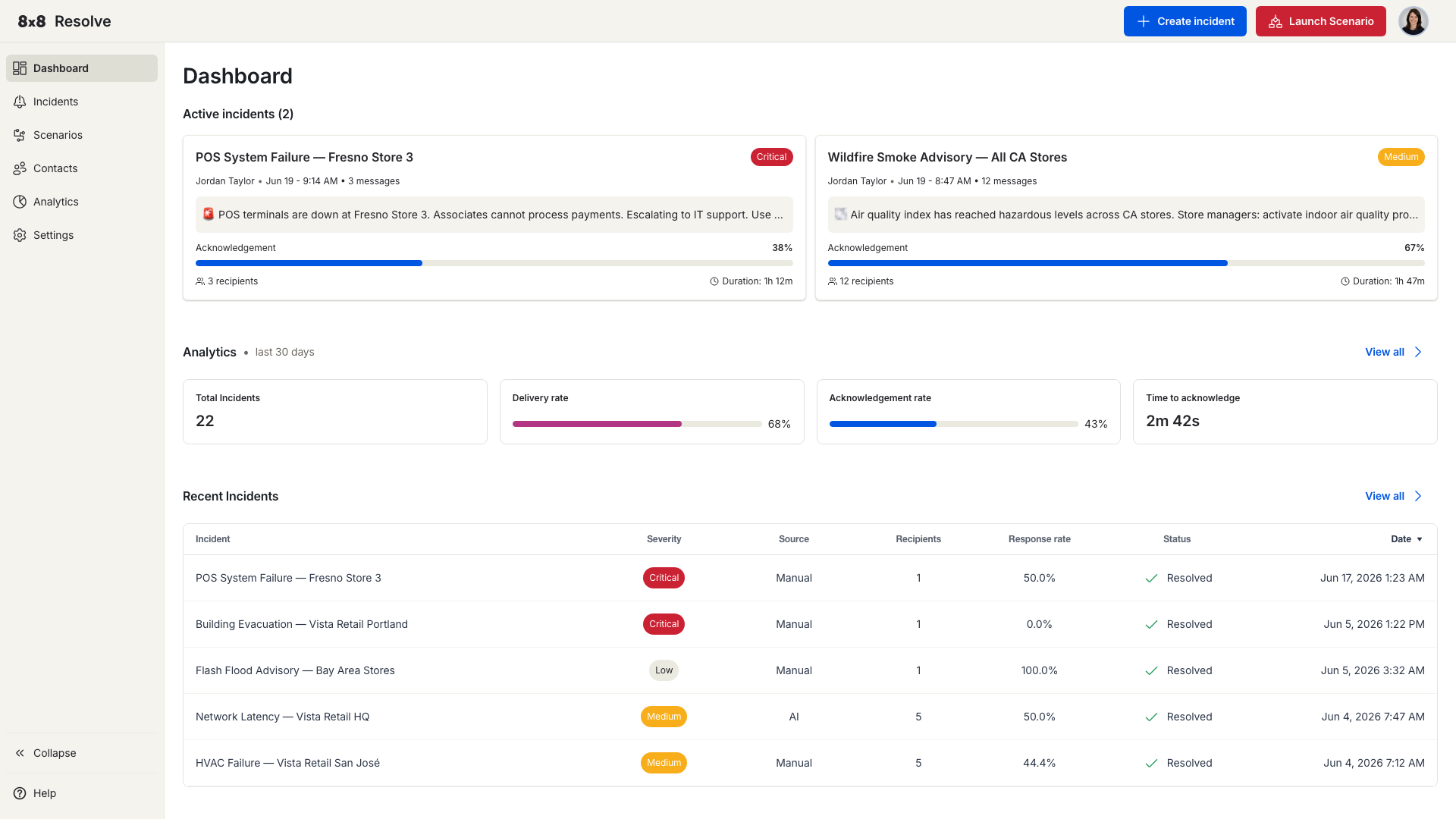
The dashboard is the first thing you see after you log in. It gives you a live summary of active incidents and a 30-day snapshot of your alert performance.
Active incidents
The top section (Active incidents) shows a card for each incident that's still active. Each card tells you:
- Title and severity (Critical, Medium, or Low)
- The owner of the incident
- When it was sent and the number of messages in the thread
- A preview of the message that was sent
- The acknowledgement percentage so far
- Number of recipients targeted
- Duration — how long the incident has been active
Click any card to open the full Incident Details page.
Analytics
Below the incident cards, the Analytics — last 30 days section summarises recent performance:
| Metric | What it measures |
|---|---|
| Total Incidents | Number of incidents sent in the last 30 days. |
| Delivery rate | Percentage of sent messages successfully delivered to recipients. |
| Acknowledgement rate | Percentage of recipients who acknowledged. |
| Time to acknowledge | Average time between sending an incident and a recipient responding. |
For trends, channel effectiveness, and per-incident breakdowns over any period, see the Analytics page.
Recent Incidents table
Scroll to the bottom of the dashboard to find the Recent Incidents table — your most recent incidents at a glance, without navigating to the full Incidents page. It shows these columns:
| Column | Description |
|---|---|
| Incident | The incident title. |
| Severity | Critical, Medium, or Low. |
| Source | Manual (created by a user) or Automation (triggered by a scenario). |
| Recipients | Number of people targeted. |
| Response rate | Percentage of recipients who responded. |
| Status | Active or Resolved. |
| Date | When the incident was created. |
Click View all to open the full Incidents page.
Navigation bar
Two quick-action buttons are always available in the top navigation bar, no matter which page you're on:
- + Create Incident — Opens the incident creation drawer immediately.
- Launch Scenario — Runs a saved automation scenario on demand.