Authentication
Overview
The 8x8 Event Streaming service supports two types of authentication credentials, depending on how you obtain them and which 8x8 system you're using.
📘 Authentication Method
Both authentication types use the same
X-API-KeyHTTP header, making the authentication mechanism consistent across both methods.
Authentication Types
Admin Console Keys (X-API-Key Header)
✅ Recommended
Admin Console Keys are the recommended authentication method for production applications. They provide centralized credential management through the 8x8 Admin Console.
Characteristics:
- Obtained from 8x8 Admin Console at admin.8x8.com
- Key format: Always starts with
eght_ - Authentication method: HTTP header
X-API-Key
How to Obtain:
If you do not have the API Keys option in Admin Console, you do not have the correct permission/role.
-
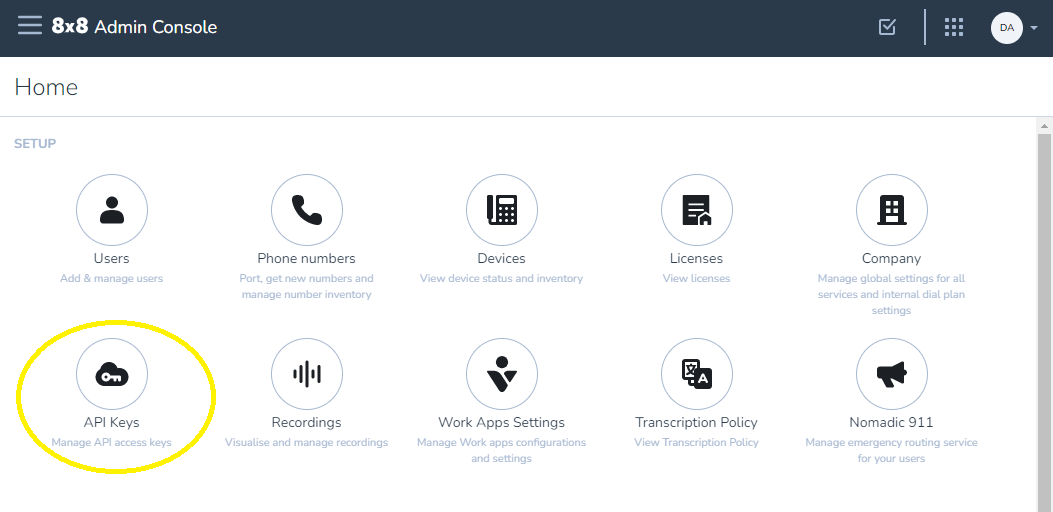
Log into 8x8 Admin Console
-
In the SETUP section, click API Keys
-
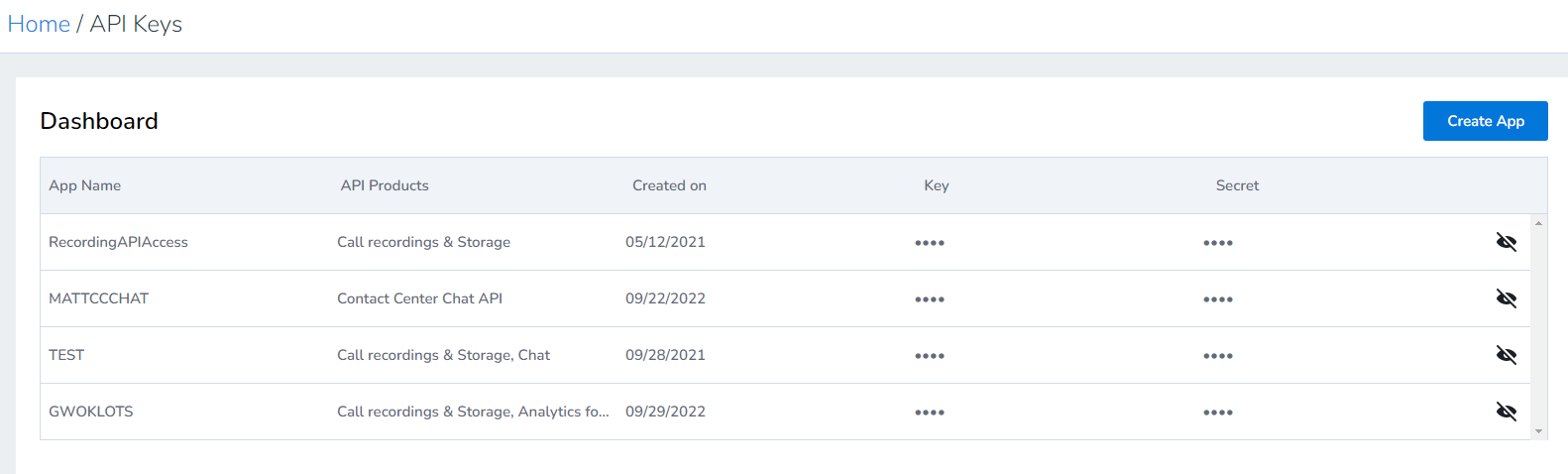
Click "Create App"
-
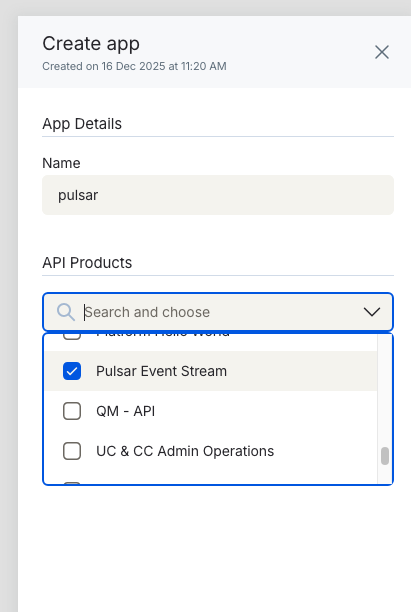
Enter an application name (no spaces allowed)
-
In the API Products dropdown, select "Pulsar Event Stream"
-
Click "Save" to generate your key
The dashboard will display your newly created app with the generated API key:

Note: The key starts with
eght_and can be viewed anytime by clicking the eye icon.
Required Permission: Application Credentials permission (Company Admin Role or custom role)
Documentation: How to get API Keys
Usage:
X-API-Key: eght_your_key_here
Contact Center (CC) Tokens (X-API-Key Header)
Characteristics:
- Obtained from Contact Center Configuration Manager
- Token format: Base64-encoded
username:api-password(does not start witheght_) - Authentication method: HTTP header
X-API-Key(same as Admin Console Keys)
How to Obtain:
- Log into Contact Center Configuration Manager
- Navigate to Integration > API Token
- If you already have a Data Request Token displayed, copy that token
- If no token exists, click "New Token" to generate one, then copy it
Important Notes:
- The token combines your username and API password
- Token does not expire unless you generate a new one
- Generating a new token invalidates the previous token for all use cases
Documentation: Streaming API Overview
Usage:
X-API-Key: your_cc_token_here
📘 Backward Compatibility
CC Tokens also continue to work with the legacy
Authorization: Basicheader and?token=Basic+URL parameter for backward compatibility with existing clients.
📘 Authentication Methods: Header vs Query Parameter
The API key can be provided in two ways:
HTTP Header (Recommended):
X-API-Key: your-key-here- Header names are case-insensitive per HTTP spec (X-API-Key, x-api-key, X-Api-Key all work)
- More secure (not logged in URLs)
Query Parameter:
?x-api-key=your-key-hereParameter name is case-sensitive (must be lowercase
x-api-key)Useful when headers cannot be set (e.g., some browser contexts)
Example Usage
Using Admin Console Keys (X-API-Key Header)
✅ Recommended Method
Admin Console Keys are the recommended authentication method for production applications.
- Go
- Java
- Node.js
headers := http.Header{}
headers.Set("X-API-Key", "eght_your_admin_console_key")

dialer := websocket.Dialer{
    HandshakeTimeout: 45 * time.Second,
    TLSClientConfig: &tls.Config{
        InsecureSkipVerify: false, // Set to true only for testing
    },
}

conn, resp, err := dialer.Dial(wsURL, headers)
String xApiKey = "eght_your_admin_console_key";
PulsarWebSocketClient client = new PulsarWebSocketClient(serverUri, xApiKey);

// The constructor automatically adds the header:
if (xApiKey != null && !xApiKey.isEmpty()) {
    addHeader("X-API-Key", xApiKey);
}
const WebSocket = require('ws');

const wsURL = 'wss://your-host/ws/v2/reader/persistent/tenant/namespace/topic';
const ws = new WebSocket(wsURL, {
    headers: {
        'X-API-Key': 'eght_your_admin_console_key'
    }
});
Using CC Tokens (X-API-Key Header)
📘 Alternative Method
CC Tokens remain supported for existing integrations or when Admin Console Keys are not available. Use the
X-API-Keyheader (same format as Admin Console Keys).
- Go
- Java
- Node.js
- Python
- Browser
headers := http.Header{}
headers.Set("X-API-Key", "your_cc_token_here")

dialer := websocket.Dialer{
    HandshakeTimeout: 45 * time.Second,
    TLSClientConfig: &tls.Config{
        InsecureSkipVerify: false, // Set to true only for testing
    },
}

wsURL := "wss://your-host/ws/v2/reader/persistent/tenant/namespace/topic"
conn, resp, err := dialer.Dial(wsURL, headers)
String ccToken = "your_cc_token_here";
String wsURL = "wss://your-host/ws/v2/reader/persistent/tenant/namespace/topic";

// Create client with X-API-Key header
PulsarWebSocketClient client = new PulsarWebSocketClient(URI.create(wsURL));
client.addHeader("X-API-Key", ccToken);
const WebSocket = require('ws');

const wsURL = 'wss://your-host/ws/v2/reader/persistent/tenant/namespace/topic';
const ws = new WebSocket(wsURL, {
    headers: {
        'X-API-Key': 'your_cc_token_here'
    }
});
import websocket

ws_url = "wss://your-host/ws/v2/reader/persistent/tenant/namespace/topic"
headers = {
    "X-API-Key": "your_cc_token_here"
}

ws = websocket.WebSocketApp(ws_url, header=headers)
// Browsers cannot set custom headers for WebSockets
// Use URL parameter instead
const wsURL = 'wss://your-host/ws/v2/reader/persistent/tenant/namespace/topic?x-api-key=your_cc_token_here';
const ws = new WebSocket(wsURL);

// Note: Token will be visible in browser DevTools and history
Troubleshooting Authentication
Common Issues
401 Unauthorized
- Verify your credential is correct and complete
- For Admin Console Keys: Ensure the key starts with
eght_ - For CC Tokens: Ensure the token is the full base64-encoded string from Configuration Manager
- Check that you're using the right tenant name
- Ensure you're using the
X-API-Keyheader (or?x-api-key=URL parameter for browsers)
Next Steps
- Connection Guide - Learn about establishing connections
- Message Format - Understand event structure
- Code Examples - See authentication in action