Contact Management
The Contacts page displays all contacts stored in your Converse account.
Contact List View
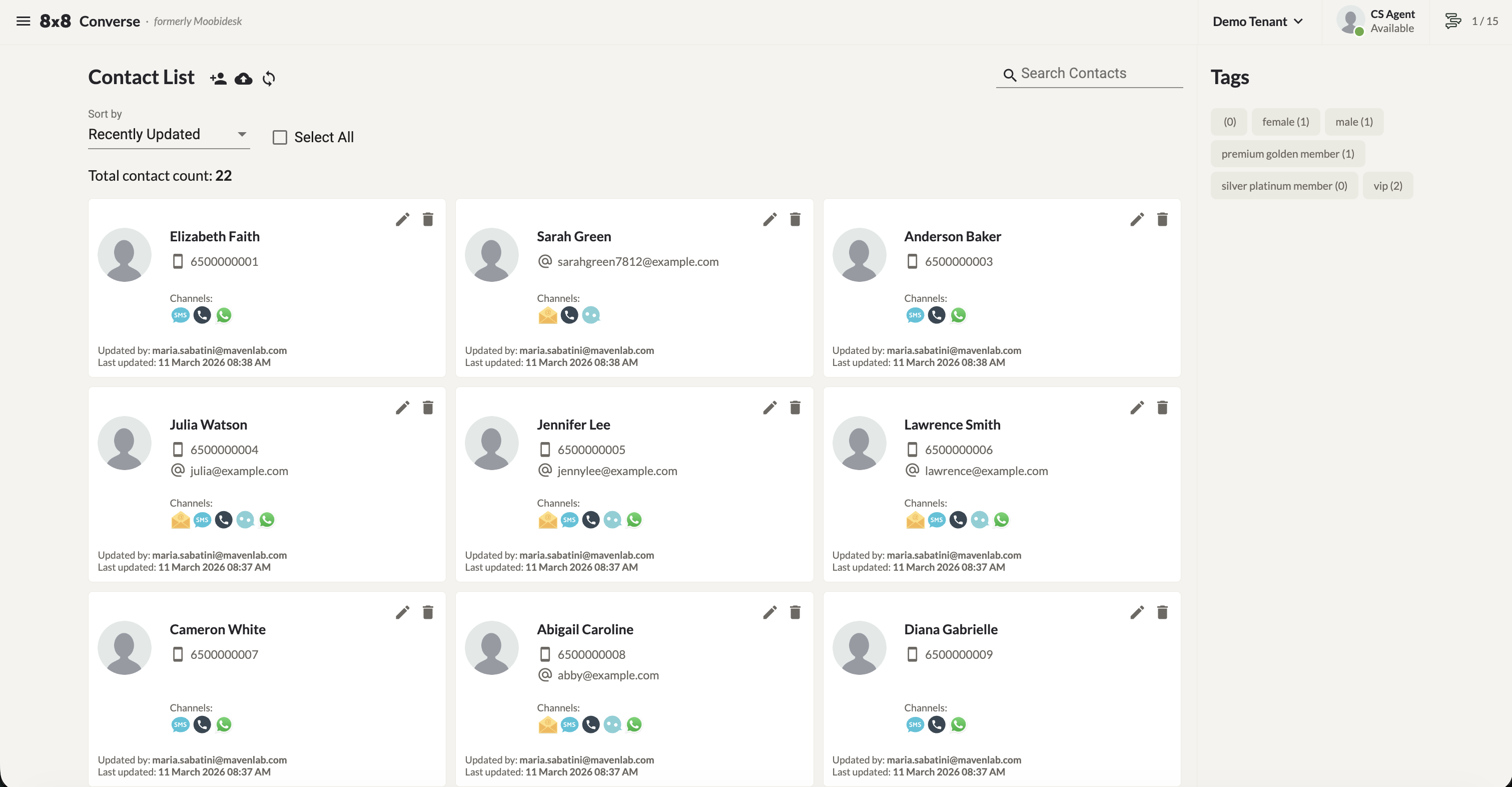
The contact list includes the following controls:
- Sort By — Sort contacts alphabetically, by Recently Added, or by Recently Updated.
- Total Contacts — Total number of contacts stored.
- Select All — Select all displayed contacts for bulk actions (delete or export).
- Search — Search by contact name, mobile number, or email.
- Contact Tags filter — Shows tags with counts. Click a tag to filter the list. Selecting multiple tags shows contacts matching all selected tags.
- Contact card — Each card shows: name, mobile number, email, communication channel, last updated by, and last update timestamp.
- Pagination — Navigate through multiple pages.
Adding a Contact
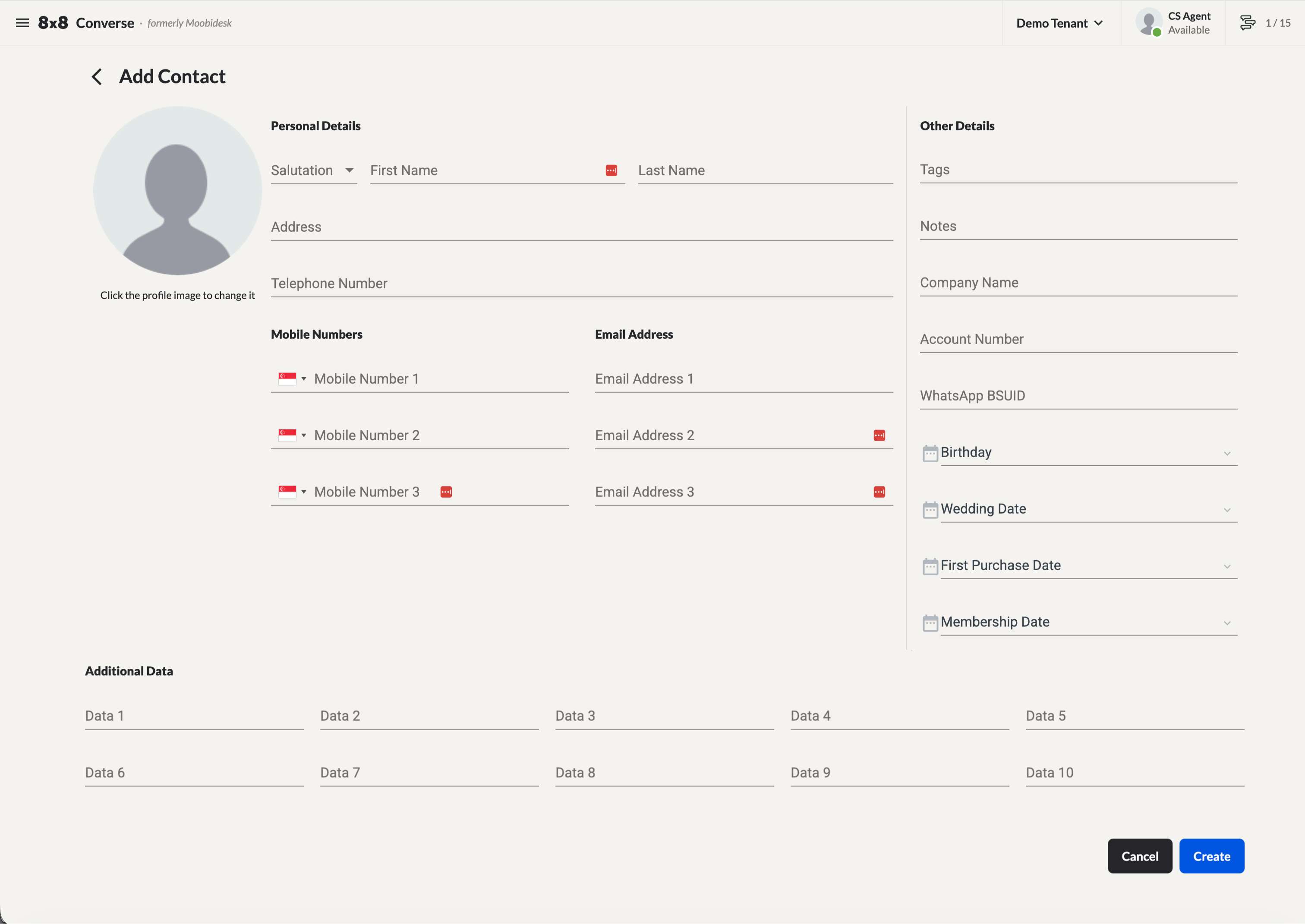
- Click the Add Contact icon.
- Fill in the contact's details and click Create.
Editing a Contact
- Click the Edit icon on the contact card.
- Update the contact's details and click Update.
Exporting Contacts
- Select the contacts to export, or click Select All.
- Click the Export Contact icon.
- Choose the fields to export (or select All Fields) and click Submit.
- A download link will be sent to your email.
Importing Contacts
Converse uses a specific CSV template for contact imports. Do not remove or rename any column headers.
Step 1 — Download the template
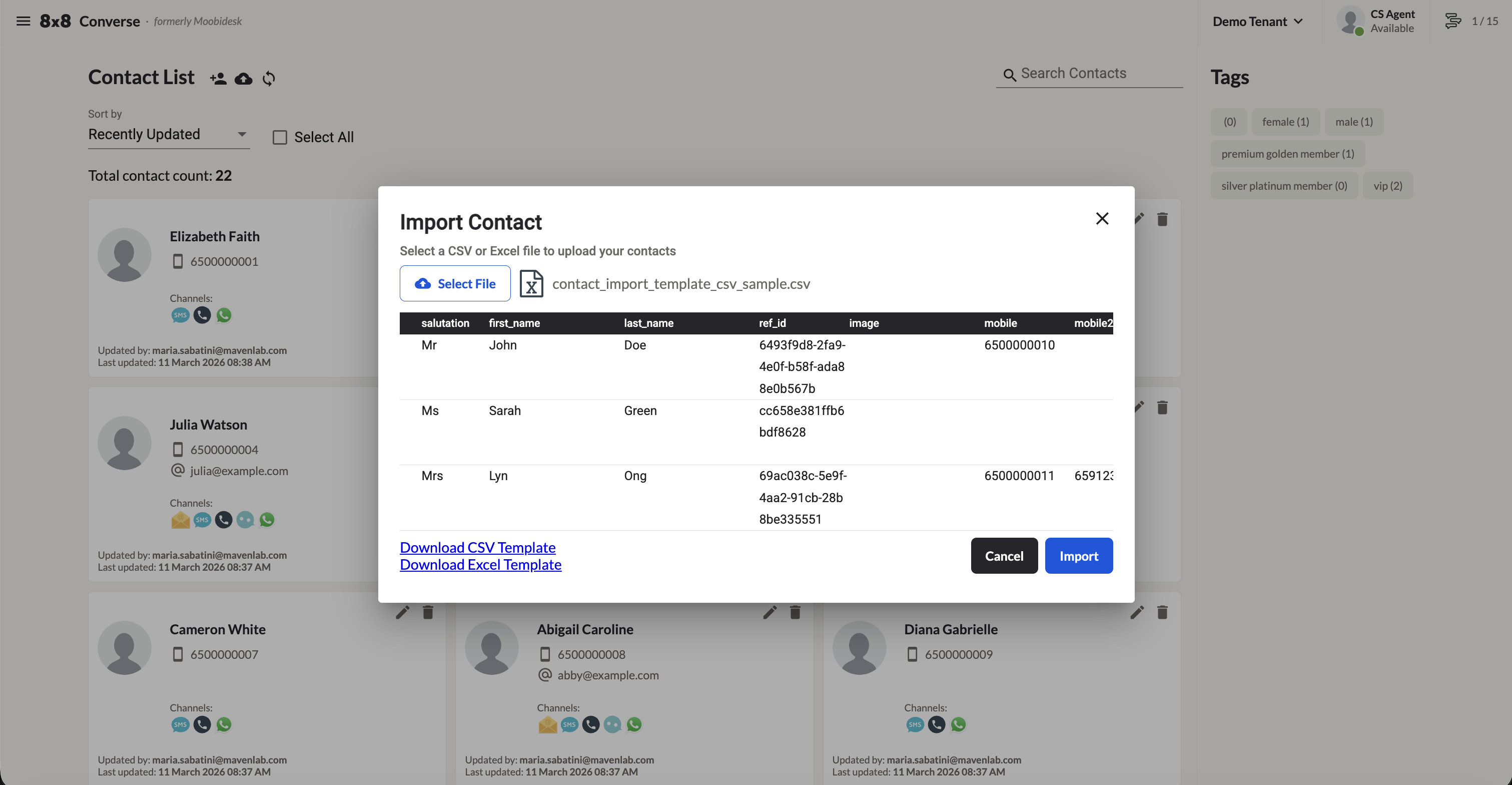
- Click the Import Contact icon.
- Click Download the CSV template to save it locally.
Step 2 — Fill in the template
| Field | Description | Example |
|---|---|---|
salutation | Title (Mr, Mrs, Ms, Miss) | Mr |
first_name | First name | John |
last_name | Last name | Doe |
ref_id | Unique identifier for future updates | cc658e381ffb6bdf8628 |
image | HTTPS URL to profile image (leave blank for default) | https://… |
mobile | Primary mobile — country code required, no spaces or special characters | 6599998888 |
mobile2 | Secondary mobile | 6598887777 |
mobile3 | Tertiary mobile | 6591239876 |
email | Primary email | johndoe@gmail.com |
email2 | Secondary email | — |
email3 | Tertiary email | — |
tags | Contact tag | vip |
notes | Additional notes | Overseas Travel |
company_name | Company name | GovCMS |
account_number | Account number | P273-222-9012 |
home_address | Home address | 123 Ang Mo Kio Ave 7 |
home_phone | Home phone | 6566667777 |
birthday | Birthday (DD/MM/YYYY) | 12/12/1980 |
wedding_anniversary | Wedding date | 02/05/2016 |
first_purchase_anniversary | First purchase date | 06/01/2018 |
membership_date | Membership date | 06/01/2018 |
data1 – data10 | Custom additional fields | Preferred customer |
Step 3 — Upload the file
- Click Select File and choose the completed template.
- If the format is invalid, an error message will appear — correct the file and retry.
- If the format is valid, a preview is shown. Click Submit to import or Cancel to abort.
Deleting Contacts
Delete a single contact
- Click the Delete icon on the contact card.
- Confirm by clicking Delete in the prompt, or Cancel to abort.
Delete multiple contacts
- Select multiple contacts by clicking their contact cards.
- Click the Bulk Delete icon.
- Confirm deletion in the prompt.