Getting Started
note
Converse was formerly known as Moobidesk. All functionality is identical — only the product name has changed.
Login & Access
Access Converse through your organization's URL:
https://e18.moobidesk.com
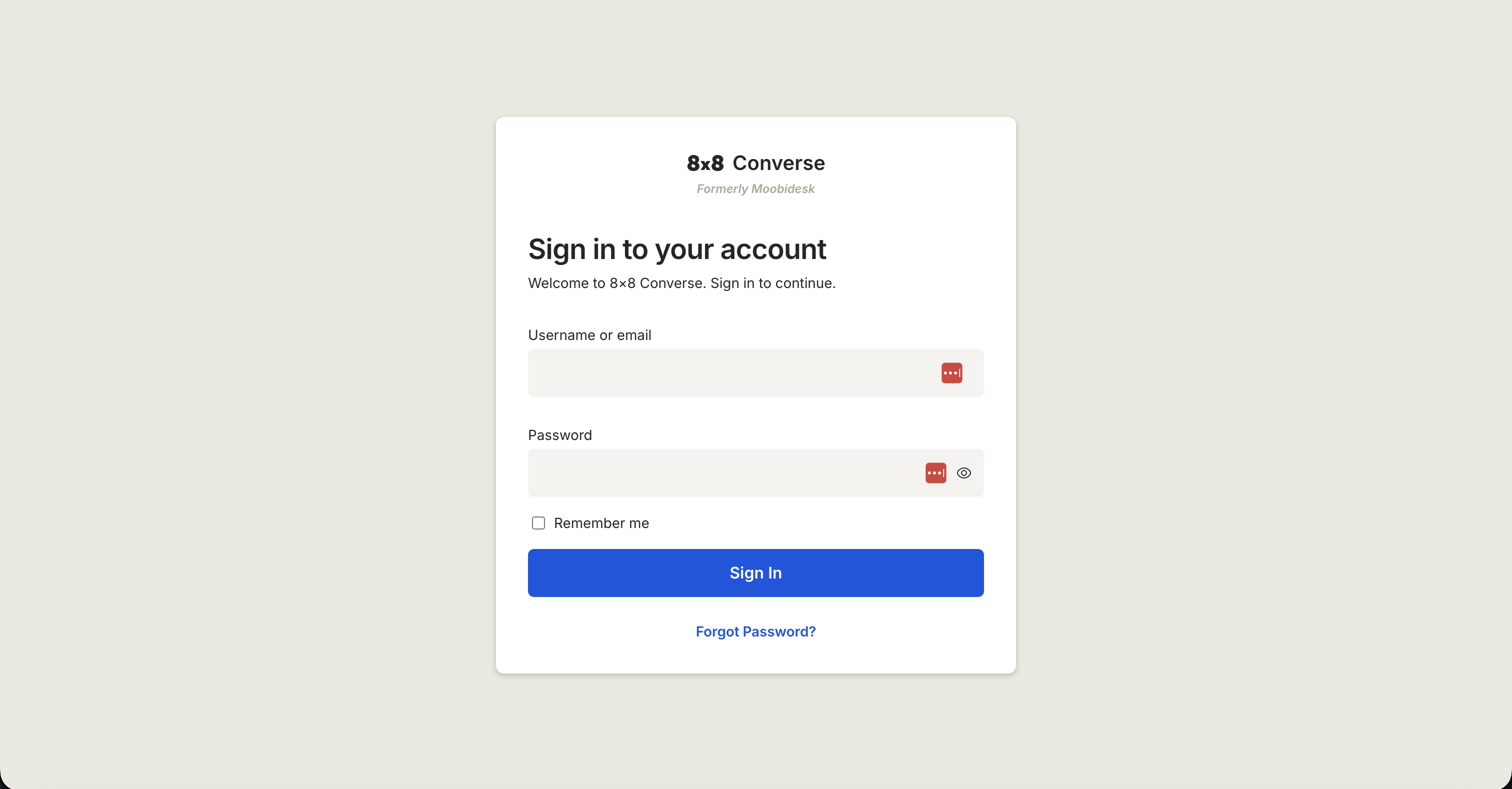
Enter your registered email address and password, then click Sign In.
Forgot your password?
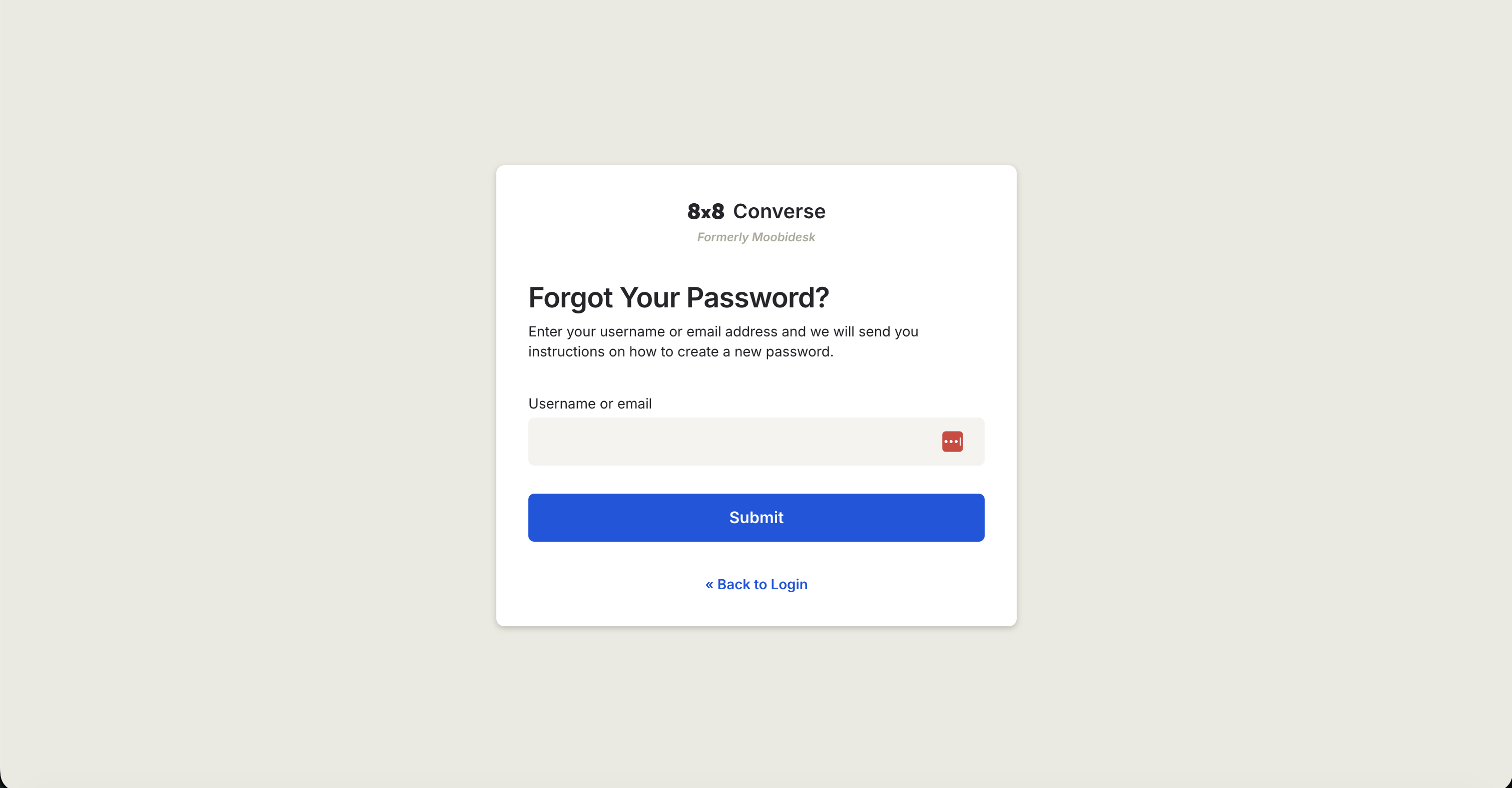
- Click Forgot Password? on the login page.
- Enter the email address associated with your Converse account and click Submit.
- A password reset link will be sent to your email.
- Click the link to open the reset page, then enter and confirm your new password.
Logging Out
Always log out when you finish your session to ensure new messages are not routed to you.
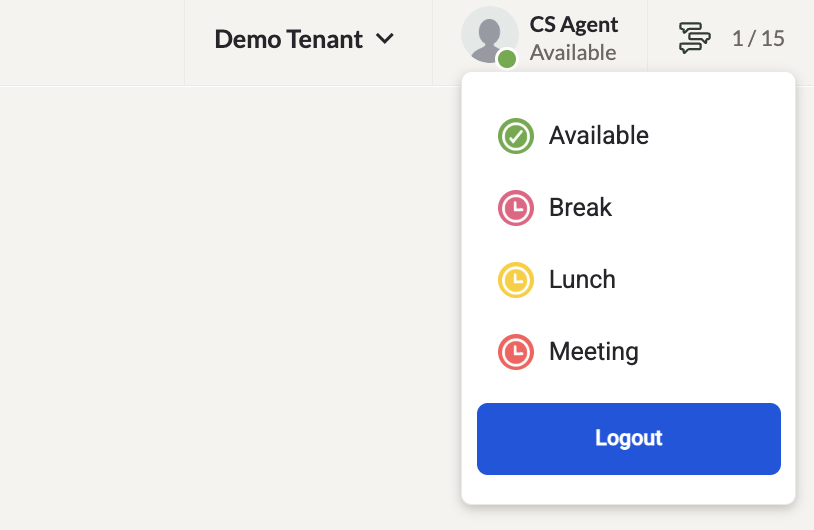
- Click your profile picture in the top-right corner of the page.
- Select Logout from the dropdown menu.
Dashboard Overview
The main navigation sidebar provides quick access to all feature areas:
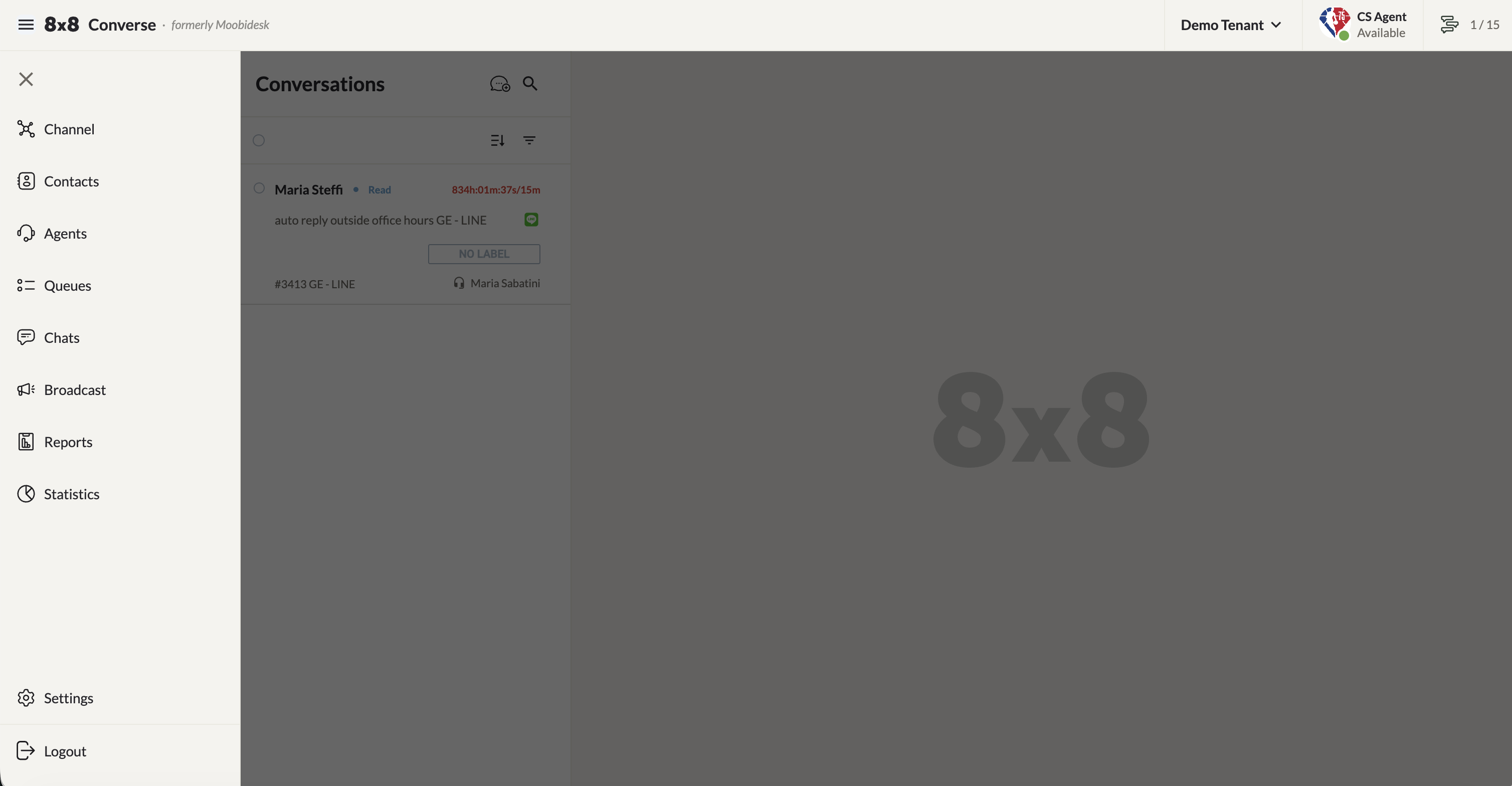
| Module | Description |
|---|---|
| Channels | Communication channels integrated into Converse |
| Contacts | Customer contact database |
| Agents | Agent management and configuration |
| Queue | Conversation routing queues |
| Chats | Active conversation management (default landing page) |
| Broadcast | WhatsApp broadcast campaigns |
| Reports | Downloadable performance reports |
| Statistics | Real-time conversation analytics |
| Settings | System configuration |
Status & Capacity Indicator
The top-right corner of the header bar displays:
- Your current availability status (Available, Busy, Away, or a custom Aux Code), shown beneath your name. Click to change status.
- Your concurrent conversation count and the maximum you can handle — e.g.
1/15.
Browser & Device Requirements
- Desktop browsers: Chrome (recommended), Firefox, Safari
- Mobile: iOS (Apple App Store) and Android (Google Play Store)
Channel Support
Converse supports multi-channel engagement across:
- SMS
- Viber
- Line
- Webchat
- Facebook Messenger
- Instagram Messaging
Next Steps
- Learn about user roles & permissions
- Set up your agents
- Configure queue routing rules