Conversations
The Conversations (Chats) page is the main workspace for sending and receiving messages across all supported channels — WhatsApp, SMS, Viber, Email, Line, Webchat, Facebook Messenger, and Instagram Messaging. It is the default landing page for all user roles.
Conversation Folders & Interface
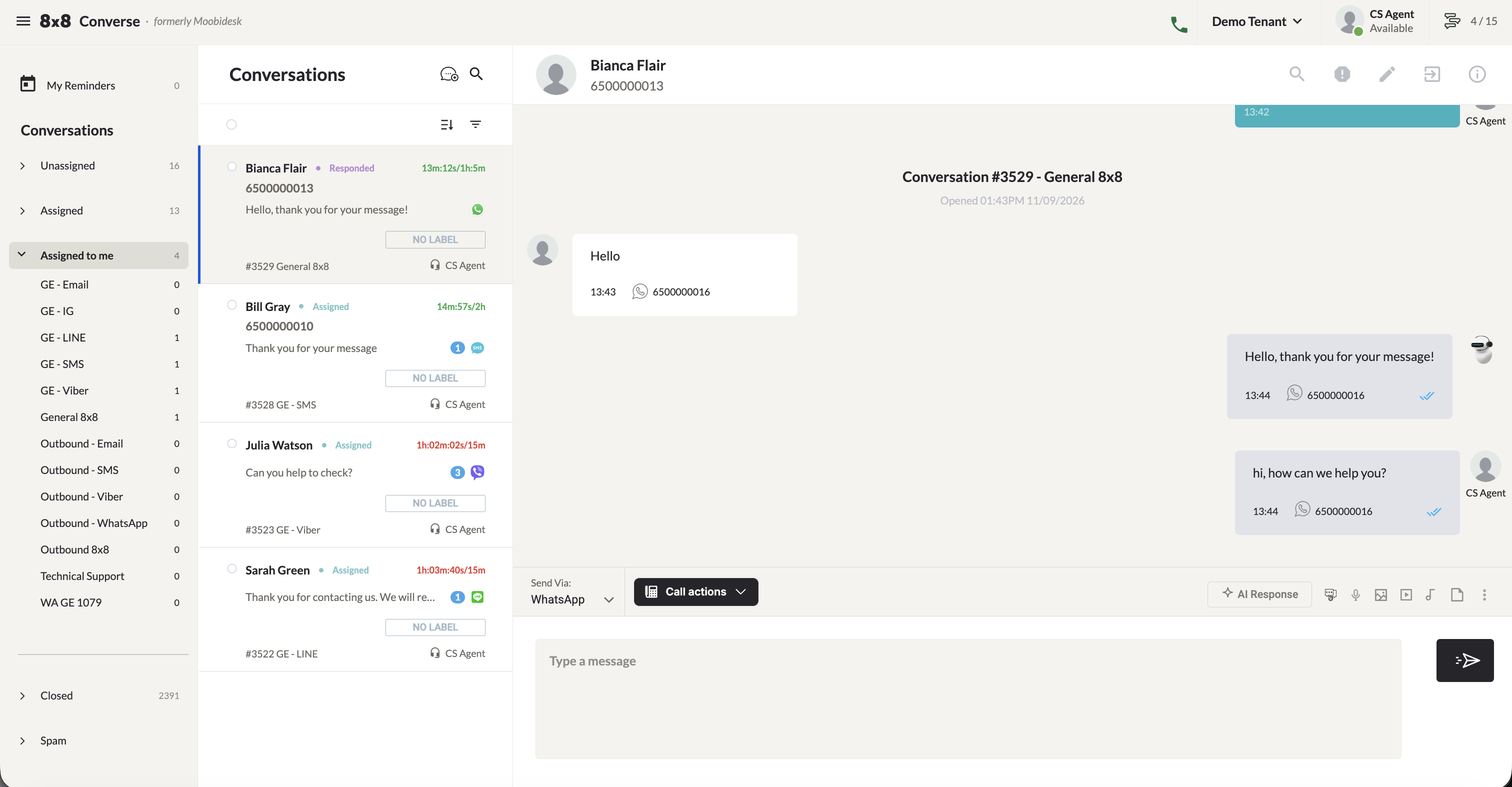
| Folder | Description |
|---|---|
| Unassigned | New conversations not yet assigned to any agent. Behavior depends on routing mode — see below. |
| Assigned | All conversations assigned to any agent. |
| Assigned to Me | Conversations assigned to the current agent. |
| Sub-Tabs (Queue) | Selecting a queue sub-tab filters to conversations in that queue. |
| Closed | Completed conversations. |
| Spam | Conversations marked as spam. To remove, open the conversation and click the unspam option. |
| My Reminders | Upcoming reminders you have set on conversations. |
Routing Modes
- Pick-Me: New conversations land in the Unassigned folder. Agents preview and manually claim a conversation to assign it to themselves.
- Round-Robin: New conversations are automatically assigned to the next available agent. The Unassigned folder is view-only in this mode.
Each open conversation provides:
- Conversation ID — A unique ID (e.g.
#123) shown at the top of the chat - Channel indicator — Icon showing which channel (WhatsApp, Email, Facebook, etc.) is in use
- Agent name — Name of the agent currently handling the conversation
- SLA timer — Color-coded timer for each stage and overall SLA (🟢 within SLA, 🟡 approaching SLA limit, 🔴 SLA exceeded)
- Conversation label — Click "No Label" to assign a label from the list
- Concurrent conversation counter — Shows current active count and maximum (e.g.
2/5)
Starting a Conversation
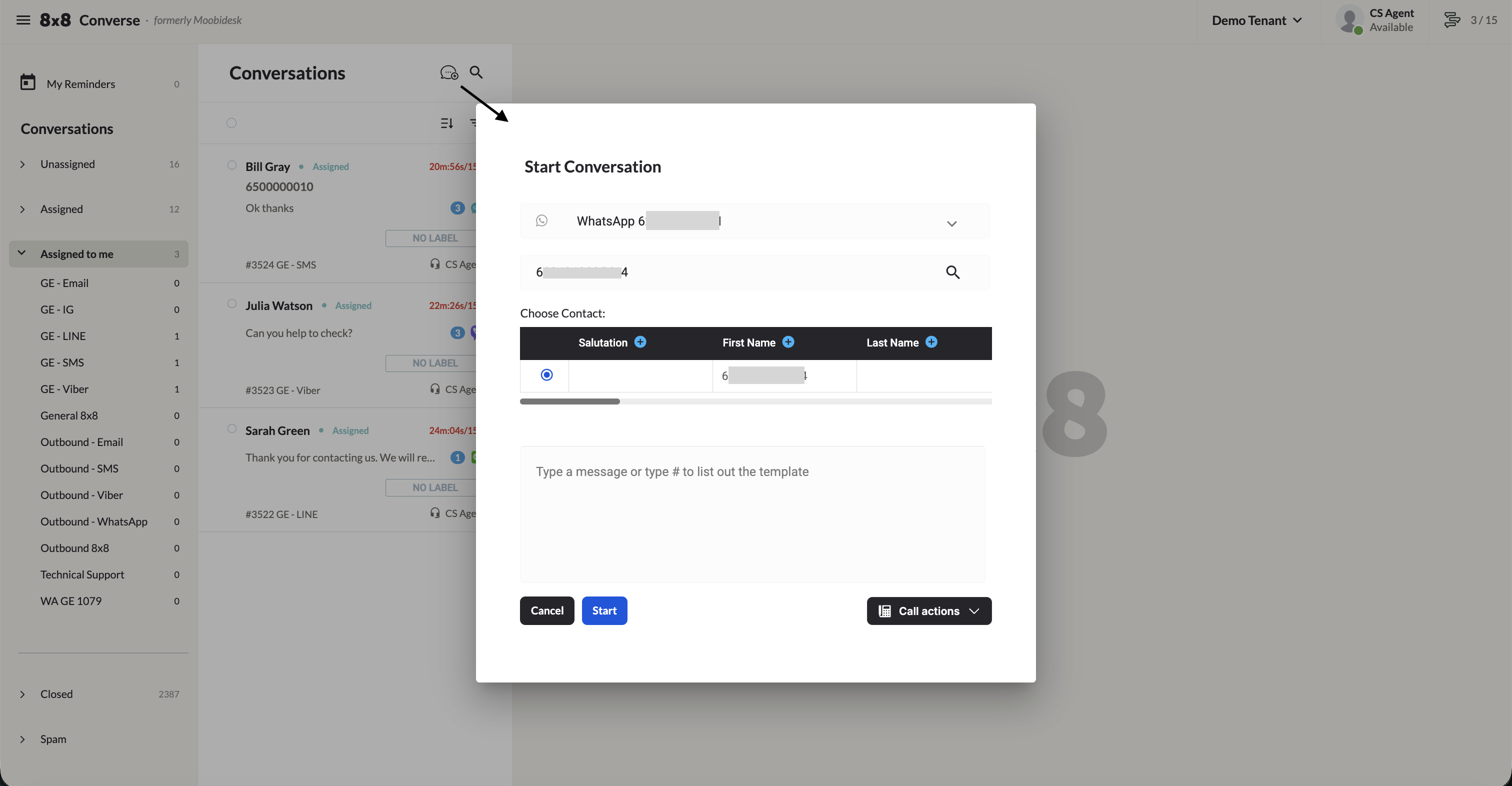
- Click the New Conversation icon in the conversation list column.
- Select the channel account to send from.
- Enter the recipient's number.
- Type your message or retrieve a canned message by typing
#followed by a keyword.
Replying to Conversations
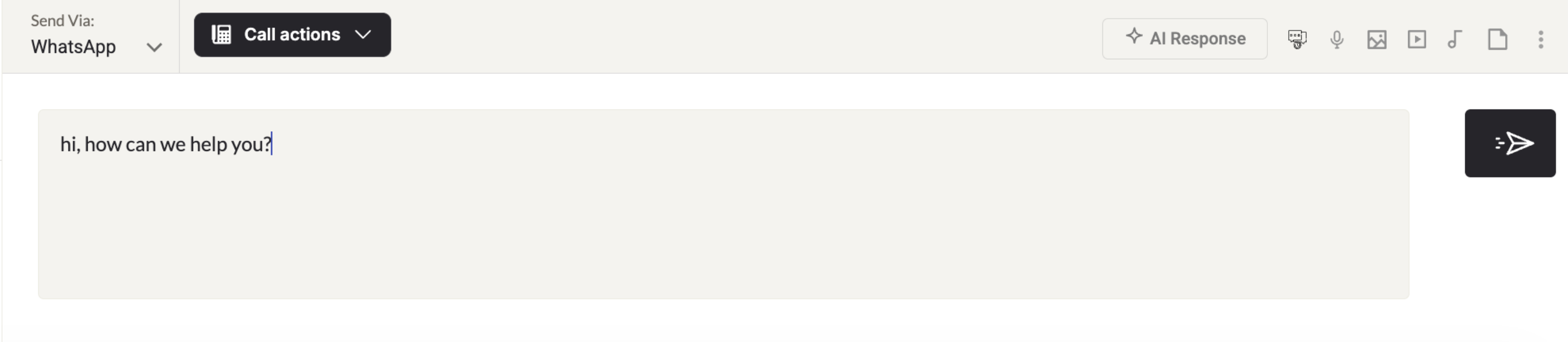
- Type in the response box and click Send or press Enter.
- Retrieve canned messages by typing
#followed by the associated keyword. - For the Email channel, a Signature selector appears at the bottom of the message field.
- Messages are auto-saved as drafts locally in your browser until sent.
WhatsApp Delivery Status
| Indicator | Meaning |
|---|---|
| Single grey tick | Sent from Converse but not yet delivered to recipient |
| Double grey tick | Delivered to recipient's device (not yet read, or read receipts off) |
| Double blue tick | Read by recipient (only if read receipts are on) |
| Exclamation mark | Delivery failed — click for failure reason |
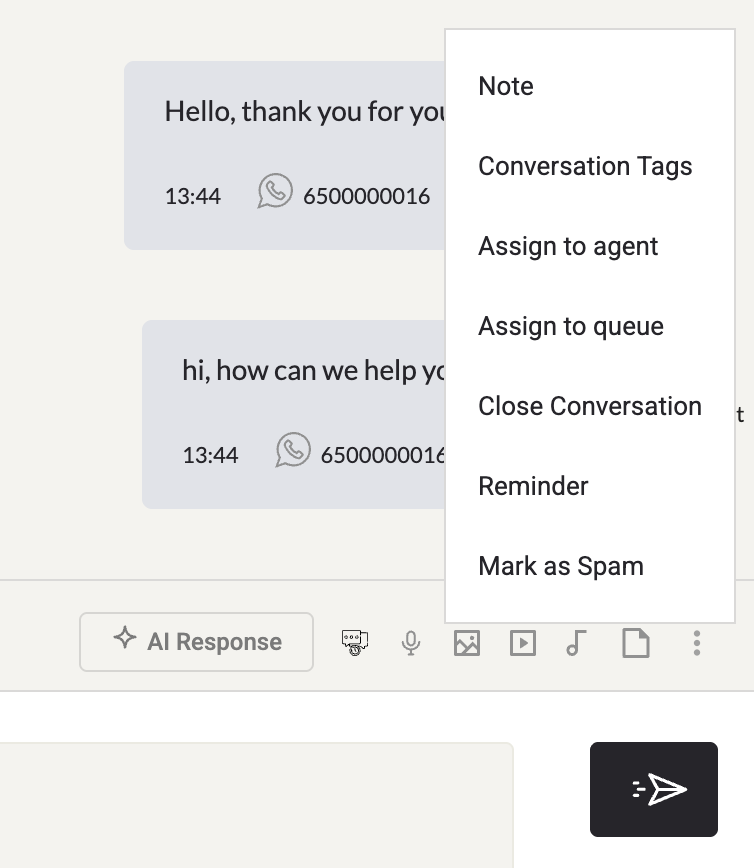
Actions (Three-Dots Menu)
Create a Note
Add an internal comment visible only to agents — never sent to the customer. Notes can include images, videos, audio, or documents, and appear alongside the conversation thread.
Add Conversation Tags
Search and select existing tags, or type a new tag name and press Enter to create it. Multiple tags can be added per conversation. Click the blue arrow to save or X to cancel.
Set a Reminder
Set a reminder to follow up on a conversation at a later time. Once set, the reminder appears in the My Reminders folder, and an email will be sent to the agent at the scheduled time.
Assign to Agent
- Click Assign Agent.
- Select the destination agent and click Next.
- Select the queue to group the conversation under and confirm.
Assign to Queue
- Click Assign Queue.
- Select the destination queue and click Next.
- Add a note and click Assign.
Close Conversation
- Click Close Conversation.
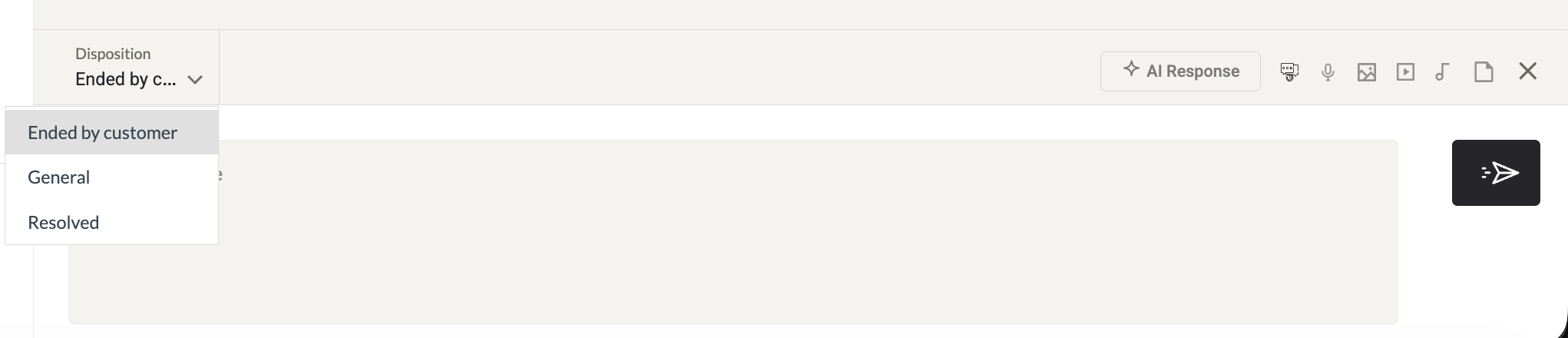
- Select a Disposition category.
- Optionally enter a note.
- Click Close.
Message-Level Actions
Click the three-dots icon next to any individual message to:
- Reply — Reply directly to that message.
- Delete — Remove the message from the Converse interface only. The message remains visible to the customer.
Icon Reference
| Icon | Action |
|---|---|
| Search (conversation list) | Search by phone number, name, or other info |
| Search (in-conversation) | Search message history by keyword within the current conversation |
| Spam | Mark conversation as spam |
| Edit (pencil) | Edit contact information or add tags/notes to the contact |
| Release | Release conversation back to the queue |
| Information | Show/hide the contact information and audit trail panel |
Bulk Actions
Bulk Assign / Release
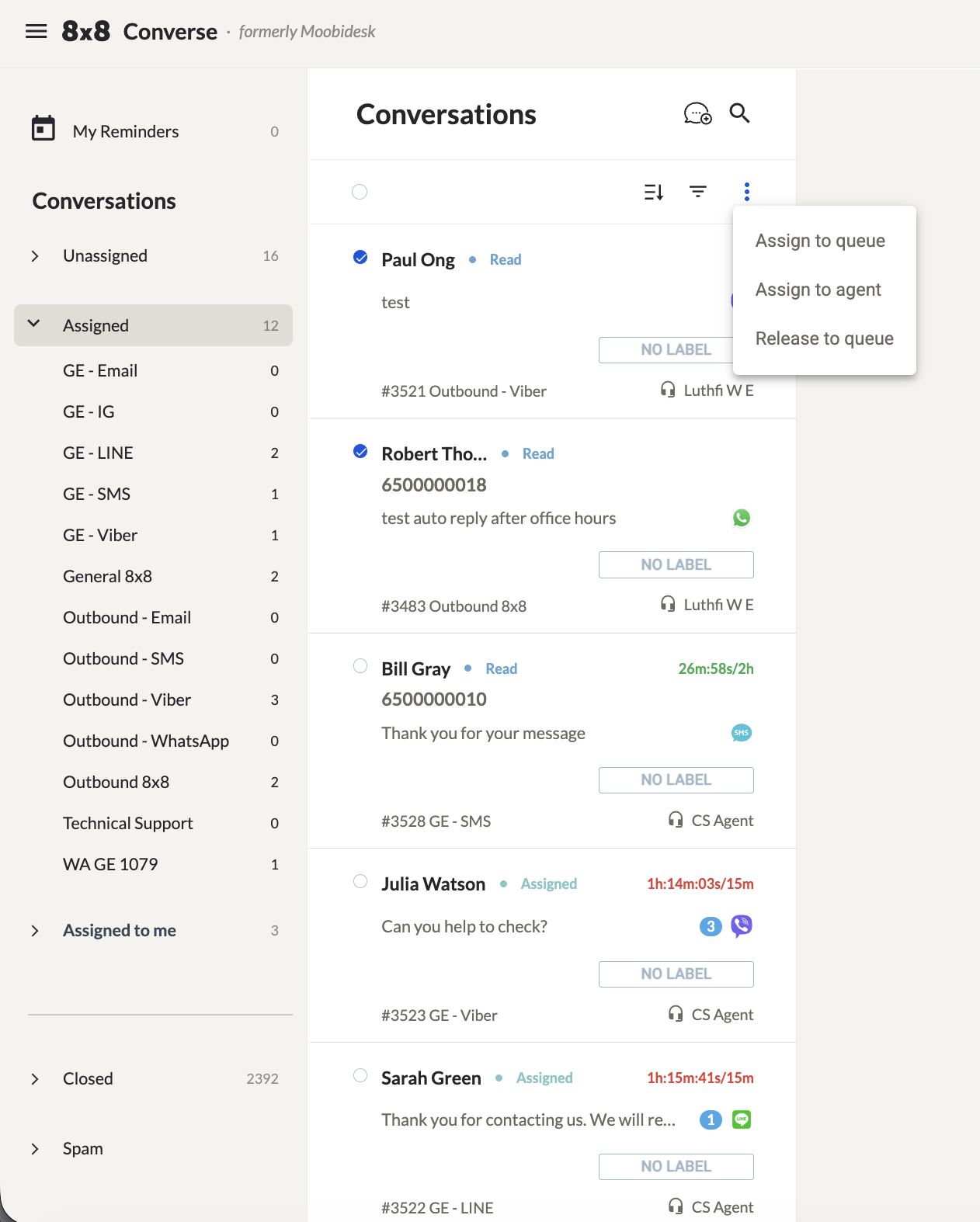
- Go to the Assigned folder.
- Select all conversations (checkbox at top) or individual conversations.
- Click the three-dots icon and choose: Assign to Queue, Assign to Agent, or Release to Queue.
Bulk Close
- Go to a queue under Assigned to Me.
- Select conversations using their checkboxes.
- Click the three-dots icon and choose Close Conversation.
- Select a Disposition, optionally add a note, and click Close.