LINE Account Provisioning and Onboarding
This guide covers the complete path from "we want LINE" to "we are sending production messages". It sets out the three provisioning routes, what you have to supply, the lead times to plan for, and how support works after go-live. Read The LINE Ecosystem and Account Model first, because the vocabulary there is what the provisioning form asks you for.
Choose Your Provisioning Path
There are three genuinely different journeys, depending on whether you already own a LINE Official Account and, if so, who currently manages it. Identify yours before you start, because the work, the owner, and the lead time all differ.
| Path A: New OA provisioned by 8x8 | Path B: Bring your own OA | Path C: Migrate an OA from another provider | |
|---|---|---|---|
| Starting point | You have no LINE Official Account | You already have an OA with the Messaging API available to you | You have an OA that another provider or agency manages |
| Who creates the OA | 8x8, as a LINE-registered Agency (AGP) partner, on your behalf | You already did | LINE, via its provider migration process |
| What you submit | The provisioning information sheet, plus a profile image | Channel ID and Channel Secret from LINE Official Account Manager | A migration request, qualified with 8x8 first |
| Who administers the OA afterwards | 8x8 manages the account as your agency partner | You retain administration in LINE Official Account Manager | Determined as part of the migration |
| Main lead-time driver | LINE verification, 14 business days | Your own console access | LINE's migration process, about 25 business days |
| Documented in | What You Need to Provide and The Onboarding Sequence | Connecting Your OA to 8x8 | The note below |
Path A: New OA provisioned by 8x8
8x8 is a LINE-registered Agency (AGP) partner and can create and manage a LINE Official Account for you. You complete one information sheet per Official Account, 8x8 submits the provisioning request to LINE, and LINE runs its verification. This is the path most new customers take, and it is the one the rest of this page is organised around.
Path B: Bring your own OA
If you already have a LINE Official Account, you keep it. Enable the Messaging API on the account, retrieve the channel credentials from LINE Official Account Manager, and hand them to 8x8. See Connecting Your OA to 8x8.
Path C: Migrate an OA from another provider
Important: If your Official Account is currently managed by another provider or agency, moving it to 8x8 means going through LINE's provider migration process. LINE charges a fee for migration and the process takes about 25 business days. Treat this as a qualification question, not a default: in some cases provisioning a new Official Account is faster and cheaper than migrating an existing one. Ask your 8x8 account manager for the current LINE migration fee before committing.
What You Need to Provide
For Path A, LINE requires a defined set of information for every Official Account, covering the account's name and handle, its category, its service language and country, its launch date, and its profile image. Contact your 8x8 account manager to obtain the provisioning information sheet and submit the required details.
One field carries a cost consequence rather than a formatting one: setting the account's push notification default to On applies a 50% surcharge. Confirm the cost impact with your account manager before selecting it.
Two rules worth restating, because they shape commercial planning:
- One form per Official Account. Each account requires its own submission.
- Each customer needs their own Official Account. 8x8 does not send from a shared Official Account, so provisioning is per customer, not per platform.
Note
The OA ID field on the form is the account's Premium ID, purchased from LINE. For what a Premium ID is and why a customer would want one, see Why Premium ID Is Meaningful. LINE's own Premium ID Terms of Use carry the character limits, the annual fee, and the renewal rules.
The Onboarding Sequence
Path A runs through eight steps. The owner changes as it progresses, so track it as a shared plan rather than a handoff.
- Intake. You submit the provisioning information sheet, and email the profile image separately.
- Owner: you.
- Submission validated and provisioning request raised. 8x8 checks the submission for completeness and consistency against your business registration, then raises the provisioning request.
- Owner: 8x8 Operations.
- Provisioning with LINE. 8x8 submits the request to LINE as your Agency (AGP) partner. This creates the Official Account and applies the Premium ID and Verified Account application if you ordered them.
- Owner: 8x8 Operations, acting as your LINE agency.
- LINE verification. LINE reviews and verifies the account. This is the long pole in the whole process.
- Owner: LINE. Lead time: 14 business days.
- Channel connection and credential issuance. 8x8 links the Official Account to your 8x8 sub-account and issues your API credentials and webhook URL.
- Owner: 8x8 Operations and Platform Engineering.
- API integration. Your developers integrate: send and receive Text, Image, Video, Audio, and Location, and register your callback URL for the inbound message webhook.
- Owner: your development team. See Getting Started.
- Converse setup (optional). If your plan includes agent-side handling of inbound LINE conversations, 8x8 provisions seats and inbox routing at this point.
- Owner: 8x8 Customer Success and you.
- Go-live and monitoring. First production message validated, delivery monitoring in place.
- Owner: 8x8 and you.
Note
Steps 6 and 4 can and should overlap. Nothing in the API integration work depends on LINE having finished verifying the account, so start intake early in the sales cycle and let verification run in parallel with development.
Timeline Expectations
- Plan for roughly 3 to 4 weeks from intake to first production message.
- Most of that is waiting on LINE, not on 8x8. The 14-business-day LINE verification lead time dominates the schedule.
- Start intake early. Because verification runs independently of your development work, submitting the information sheet early is the single most effective way to shorten the calendar.
Two different published durations, measuring two different things
You will encounter two numbers. They are not in conflict, because they do not measure the same thing:
| Duration | What it measures | Who states it |
|---|---|---|
| 14 business days | The end-to-end lead time for an 8x8-managed Official Account provisioning request, from submission of materials to a provisioned account | 8x8, based on LINE's Official Account provisioning process |
| About 10 business days | LINE's own Verified Account review, from application to completion | LINE, in its Official Account help centre |
Quote the 14 business days figure when setting expectations for an 8x8-provisioned account. Quote the 10 business days figure only when the question is specifically about LINE's Verified Account review. See Why Verified Account Matters.
Connecting Your OA to 8x8
This section applies to Path B, and to the credential handover at step 5 of Path A.
What 8x8 Needs From You (Path B)
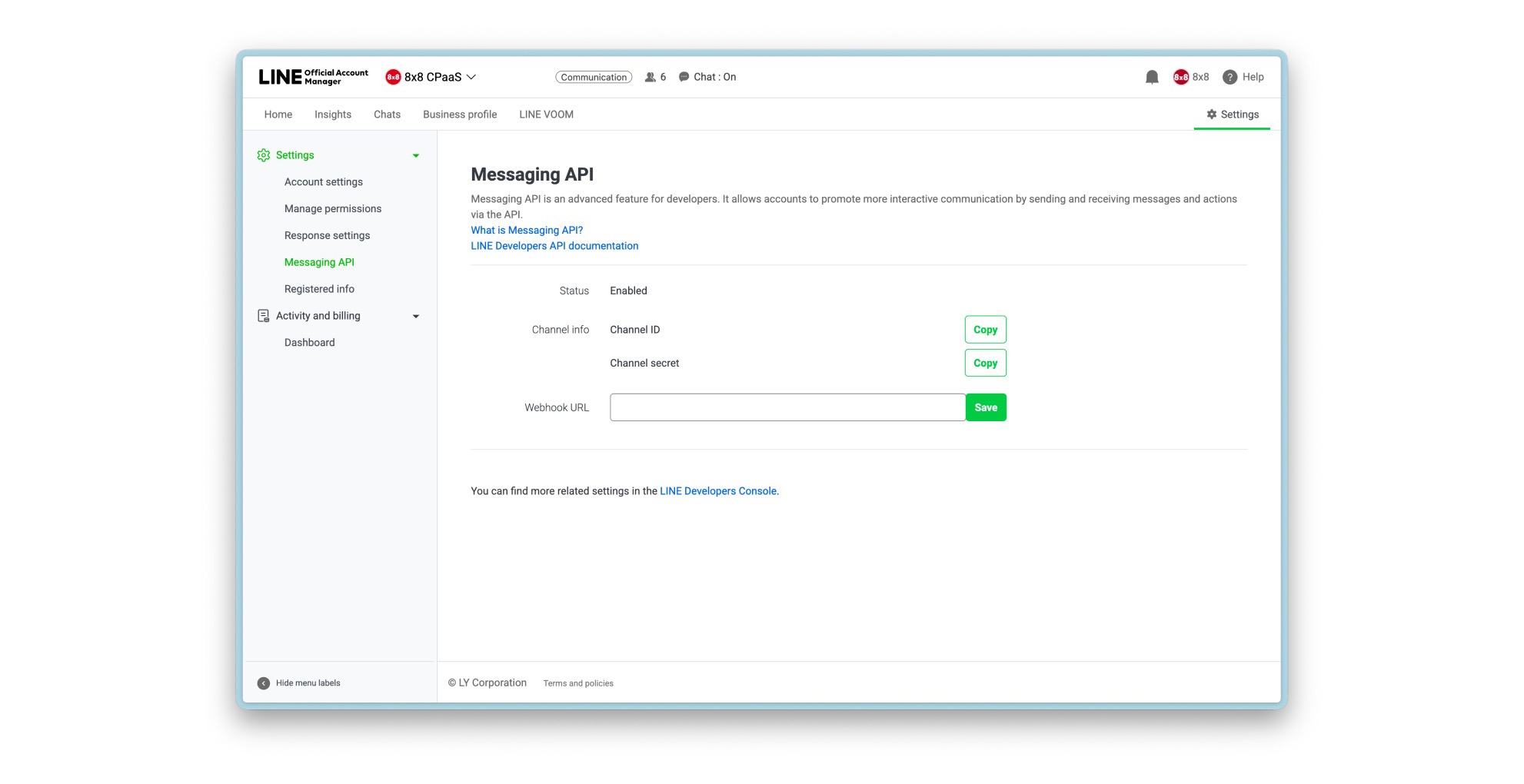
- In LINE Official Account Manager, go to Settings > Messaging API and enable it.
- On that same Messaging API settings page, retrieve:
- Channel ID: the unique identifier for your LINE channel.
- Channel Secret: the secret key used to generate access tokens. Retrieving it requires Admin privileges on the channel.
- Provide the Channel ID and Channel Secret to 8x8. Contact your account manager or cpaas-support@8x8.com to have the LINE channel configured on your sub-account.
Note
The same Channel ID and Channel Secret are also visible from the LINE Developers Console, which LINE Official Account Manager links out to for more advanced channel settings. For what 8x8 needs, the Messaging API settings page above is enough.
What 8x8 Configures For You
- A new sub-account. LINE requires a new sub-account ID. It cannot be an existing SMS sub-account.
- The channel itself. 8x8 configures your LINE channel on that sub-account.
- Any fallback chain. The 8x8 team sets up your account's multi-channel fallback: which channels are used, in what order, and how long to wait before triggering the next one. The
linechannel reportsAcceptedandSentdelivery statuses, which the fallback chain can use. See Delivery Receipts. - Your webhook URL. 8x8 issues the URL that LINE should post to. Contact cpaas-support@8x8.com to obtain the correct webhook URL for your account.
Once the channel is live, generate your API key in the 8x8 Connect portal. See Authentication.
Configuring Your Webhook
Two separate webhook configurations are involved, and it is easy to conflate them. One points LINE at 8x8. The other points 8x8 at you.
1. Point LINE at 8x8. In LINE Official Account Manager, go to Settings > Messaging API, set the Webhook URL field to the URL provided by 8x8, and click Save.
2. Point 8x8 at your application. Register your own callback URL with 8x8 using the Webhooks Configuration API. One callback URL serves every Messaging Apps channel on the account, and the channel field in each payload tells you which channel a message came from. See Configuring Your Webhook.
After Go-Live
What lives where
| Task | Where you do it |
|---|---|
| Sending and receiving messages | 8x8 Messaging Apps API |
| Inbound message webhooks, and LON delivery receipts | Your callback URL, registered with 8x8 |
| Message volume reporting across channels | Messaging Apps Analytics in 8x8 Connect |
| API key generation and rotation | 8x8 Connect portal |
| Account profile, display name, and profile image | LINE Official Account Manager |
| Subscription plan and Premium ID purchase | LINE Official Account Manager |
| Search visibility toggle | LINE Official Account Manager |
| Administrator permissions | LINE Official Account Manager |
| LINE's own account statistics (Insights) | LINE Official Account Manager |
Escalation
Account-level LINE issues, including verification problems, account suspension, and package changes, are escalated through the 8x8 agency relationship with LINE rather than raised by you directly with LINE. Raise them with 8x8 support and 8x8 escalates on your behalf.
Message delivery and API issues follow the standard 8x8 CPaaS support process. Note that the line channel reports Accepted and Sent but not Delivered or Read. Build your monitoring around these statuses and the synchronous send response. See Delivery Receipts.
Next Steps
For Business Users:
- The LINE Ecosystem and Account Model - What Verified Account and Premium ID actually mean before you order them
- Governance, Security and Compliance - LINE's account rules and what happens if you break them
For Developers:
- Getting Started with LINE over the 8x8 API - Authentication, base URLs, and your first send
- LINE Official Account Webhooks - Inbound messages, delivery receipts, and retry behaviour
Important Concepts:
- Identifying a LINE Recipient - Why you cannot send to a phone number on this channel