Analytics and the audit trail
Click through 8x8 Resolve analytics: tenant-wide reports and exports, the record for a single incident, and what happened in each scenario run. Use Next and Back, or the arrow keys, to move between steps. Choose Full screen to see the screenshots at a larger size.
Tenant analytics
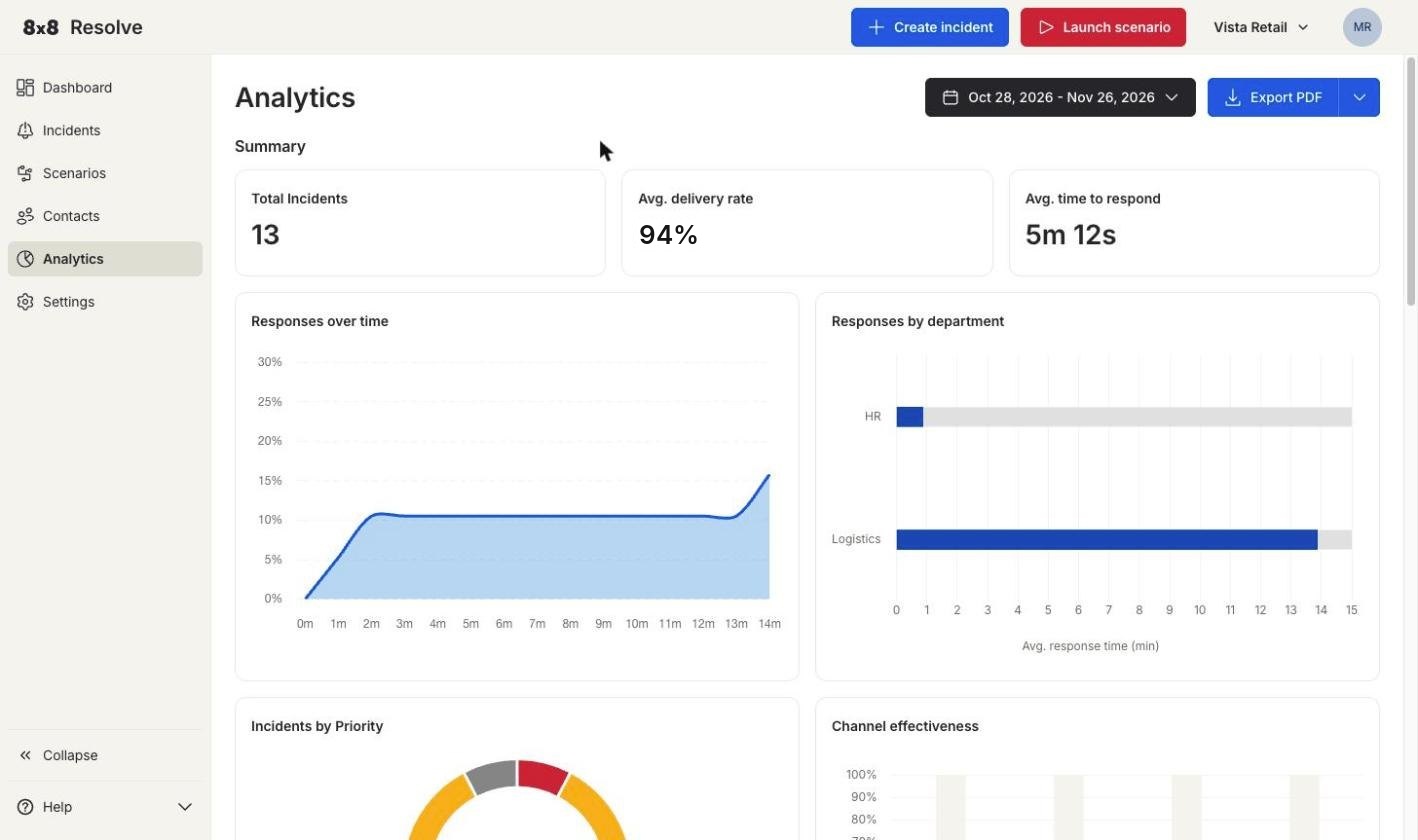
Analytics covers every incident
Analytics in the left menu rolls up all incidents in the tenant. Scenario runs have their own analytics, reached from the Scenarios list. The Scenario runs chapter covers those.
1 of 25
Tenant analytics
- Analytics covers every incident. Analytics in the left menu rolls up all incidents in the tenant. Scenario runs have their own analytics, reached from the Scenarios list. The Scenario runs chapter covers those.
- Pick the date range first. Everything on the page follows this range. It opens on the last 30 days.
- Presets or custom dates. Last 7, 30, 60 or 90 days, this week, month, quarter or year, or pick start and end dates on the calendar, then Apply.
- Export PDF or CSV. Export PDF gives a report to share. The arrow beside it offers Export CSV for the raw data. Both use the selected date range. Keep an export as your record of who was alerted and how they responded after an event.
- The headline numbers. Total incidents, average delivery rate and average time to respond for the range.
- Responses over time. How quickly the response rate climbs after an alert goes out.
- Responses by department. Average response time per department, so you can see which teams are slow to answer. Department comes from the contact record.
- Incidents by priority. The split of Critical, Medium and Low incidents in the range.
- Channel effectiveness. Responses per channel as a percentage, side by side for every channel the tenant uses. A channel breakdown with sent, delivered and responses sits below.
- Every incident, one row each. Severity, source, recipients, response rate and status. Search by name, sort by date, and click a row to open that incident.
One incident
- The incident record. Recipients, responses, delivery rate, response rate, time to first response and average time to respond for this one alert.
- Channel breakdown. Sent, delivered, failed and responses for each channel the incident used.
- Down to each person. Expand a recipient to see every message they were sent, grouped by initial alert, updates and resolution: channel, status, when they were notified and how long they took to respond. The communications timeline below lists the original alert and any updates.
Scenario runs
- Start from the Scenarios list. Scenario analytics aren't on the main Analytics page. In Scenarios, the Status column shows the run count, such as 16 runs. Click it. Scenarios that have never run show Never ran and no link.
- Run history. One row per run: recipients, how it was triggered, status, start and finish times and duration.
- Analytics for this scenario. The Analytics tab rolls up every run of this scenario. Export PDF or CSV sits on the right.
- Run-level numbers. Total runs, run success rate, average recipients per run, total recipients and average duration.
- Outcomes and triggers. Run outcomes shows completed, failed and in-progress runs. Runs by trigger shows whether they were started by hand, webhook, schedule or message.
- Run history over time. Runs per day, coloured by outcome. Use it to confirm that a scheduled drill actually ran.
- Open a single run. Back on Run History, click a run ID to see exactly what happened in that run.
- The flow as it ran. The scenario's steps as they ran, including any condition branches, with the number of people that passed between each one. The version badge (v12) shows which version of the scenario ran.
- Click any step. The side panel shows that step's settings, such as channel, severity and message, plus how many entered and completed it and how long it took.
- Run overview. Status, trigger, start, finish and duration, then recipients reached, unreachable and responded.
- Each recipient, each step. Filter by status, channel or responded. Expand a person to see each step that reached them, the channel, status and sender identity.
- Delivery history. Details shows the timeline from queued to sent, delivered and responded, with the response given. Export .csv at the top of the run page downloads the lot. That's the tour. For help, open Help in the left menu and choose Contact support.