Message Types & Templates
This section covers the most important component of business-initiated conversations: Message Templates. You will learn what they are, how they are structured, and how to create and manage them using both the 8x8 Connect portal and the 8x8 Messaging App API.
Template Categories & Use Cases
All templates must be assigned a category that describes their purpose. This category determines how the message is treated (and billed) by Meta.
| Category | Description | Common Use Cases |
|---|---|---|
| Authentication | Enables you to send one-time passcodes (OTPs) to authenticate users. | User login, account verification, password reset, integrity checks. |
| Marketing | Used for promotions, offers, or announcements to drive customer engagement and sales. | New product alerts, sale notifications, re-engagement campaigns. |
| Utility | Facilitates a specific, agreed-upon request, transaction, or update for an existing customer. | Order confirmations, delivery status, appointment reminders, account statements. |
Template Anatomy & General Rules
A template is a structured message format composed of different components. You must follow this structure for your template to be approved.
Core Requirements
| Component | Description | Required? |
|---|---|---|
name | A unique name for your template. Max 512 characters; allowed characters are lowercase alphanumeric and underscores (e.g., order_confirmation_v2). | Yes |
language | The language code for the template (e.g., en_US, es). | Yes |
category | The template's purpose (AUTHENTICATION, MARKETING, or UTILITY). | Yes |
components | An array of objects that define the message content. | Yes (Must contain at least a BODY) |
Platform-wide Template Limits
-
Template Count Limit:
-
Unverified Meta Business Portfolio: Up to 250 templates per WABA.
-
Verified Meta Business Portfolio (with at least one number with an approved display name): Up to 6,000 templates per WABA.
-
-
Creation Rate Limit: You can create up to 100 templates per WABA per hour.
Creating & Managing Templates in the Portal
The 8x8 Connect portal provides a visual interface for managing the entire template lifecycle.
1. Viewing Templates
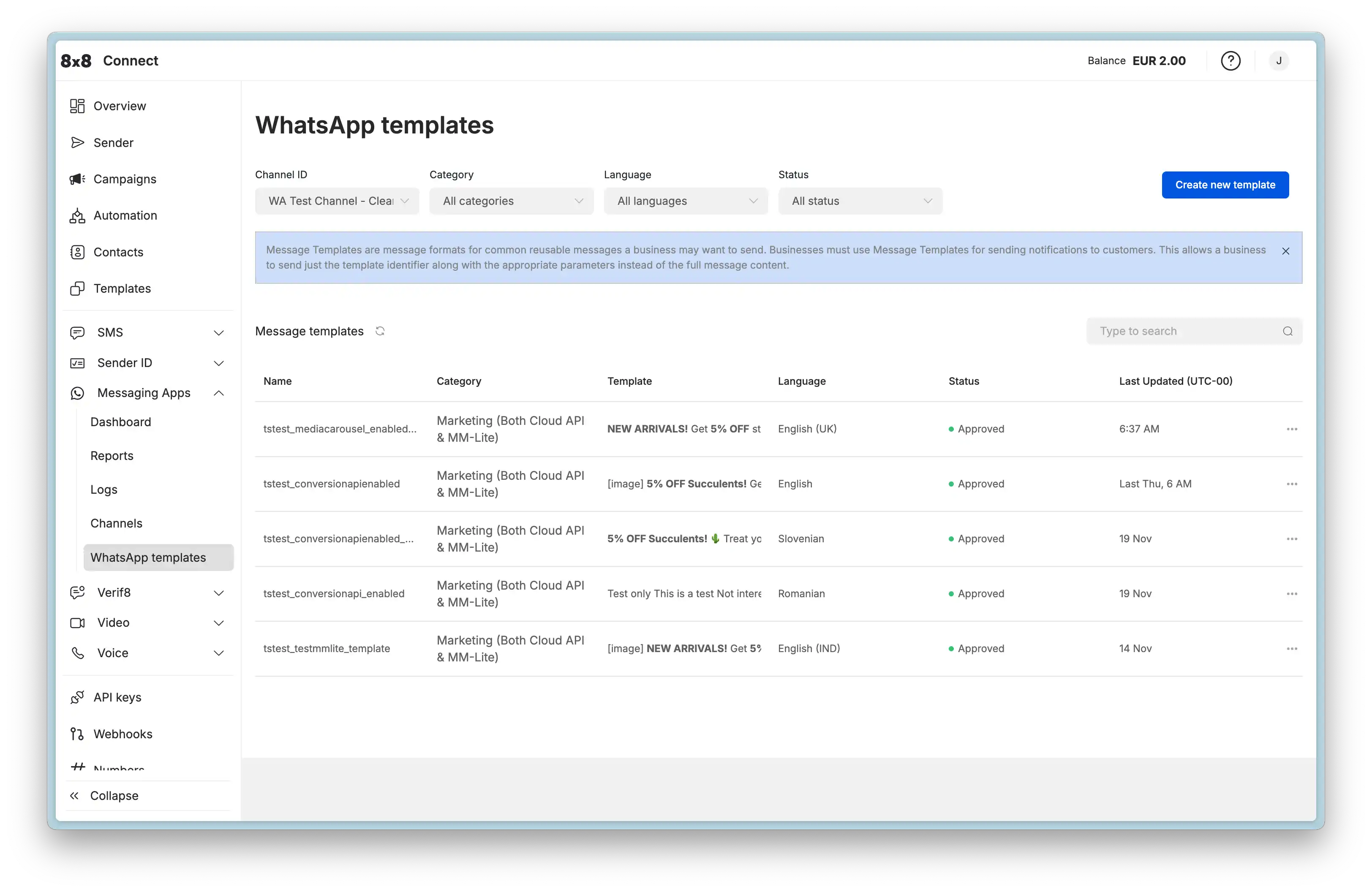
You can view, filter, and search all existing templates associated with your WhatsApp channels.
-
Navigate to Messaging Apps > WhatsApp Templates in the 8x8 Connect portal.
-
The list displays the template's Name, Category, Language, Status (e.g., Approved, Rejected, Pending), and Last Updated date.
2. Creating a New Template
-
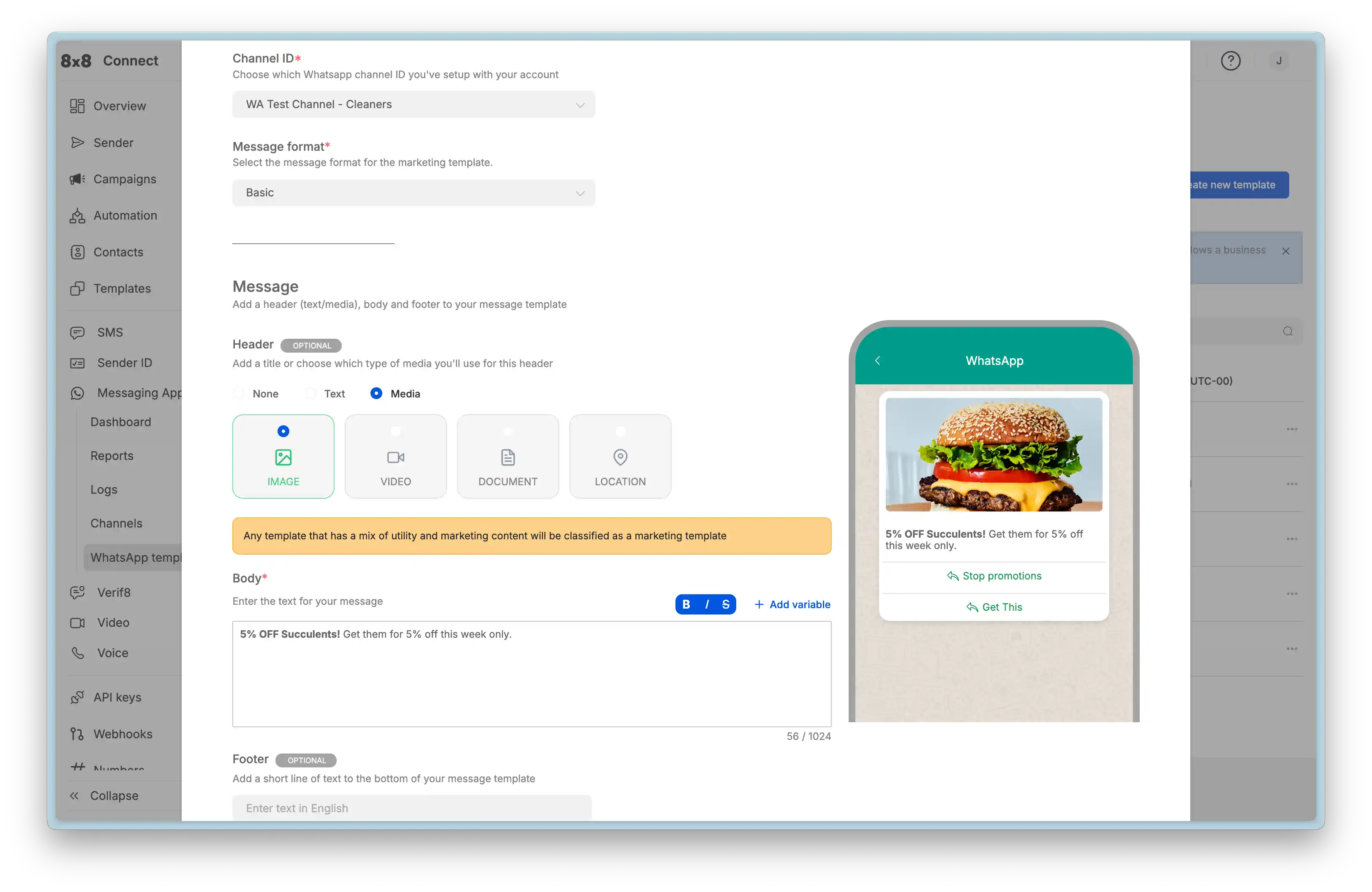
From the WhatsApp Templates page, click the "Create new template" button.
-
A pop-up will guide you through defining all the necessary components:
-
Name, Category, Language, and Channel ID (the sender phone number).
-
Header (Text, Image, Video, or Document).
-
Body (This is where you add your text and
{{1}}placeholders). -
Footer (Optional text).
-
Buttons (Quick Reply, Call to Action, or OTP).
-
-
Submit the template for approval by Meta. This process can take from a few minutes to several hours.
-
You can monitor the status of your submission on the main template page.
3. Editing Templates
While templates cannot be edited directly within the 8x8 Connect portal, you can edit approved templates in the Meta WhatsApp Manager Dashboard. Be aware that edits must be re-submitted for approval by Meta.
4. Duplicating Templates
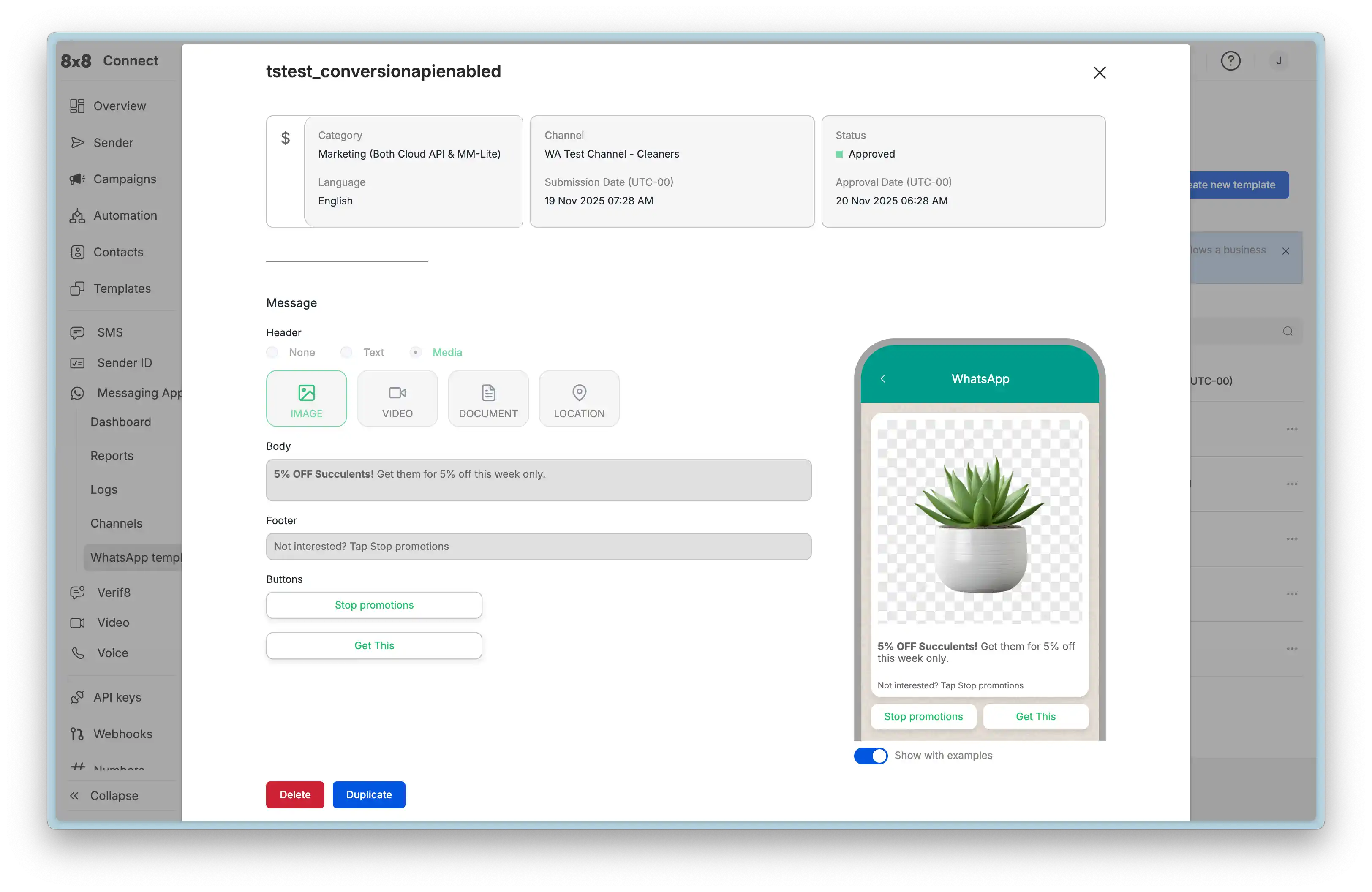
To save time, the 8x8 Connect portal allows you to duplicate an existing template.
-
Find the template you wish to copy in the template list.
-
Click the duplicate button.
-
This will open the "Create new template" modal, pre-filled with all the components (Header, Body, Buttons, etc.) from the template you selected.
-
You can then make your changes (e.g., adjust wording, add a new button) and give it a new, unique name before submitting it for approval.
5. Deleting Templates
You can delete a template by hovering over it in the list and selecting the delete button.
Managing Templates via API
You can also create templates programmatically using the 8x8 Messaging App API. This is useful for automating template creation or integrating it into your own content management system.
To create a template, you send a POST request to the create template endpoint:
POST https://chatapps.8x8.com/api/v1/accounts/{accountId}/channels/{channelId}/templates
For detailed API documentation and examples:
- Creating a Template via API - API endpoint and example payload
- Template Components Reference - Detailed component specifications
- Template Message API Library - Complete create & send payload examples
API Resources & Developer References
For developers integrating template functionality via the API, these resources provide detailed technical specifications and examples:
Component Specifications:
- Template Components Reference - Complete technical specifications for all template components (headers, body, buttons, carousels) including character limits, format requirements, and parameter rules
API Payloads & Examples:
- Template Message API Library - Comprehensive collection of Create and Send payload examples for every template type
- WhatsApp over 8x8 API - API authentication, endpoints, and integration guide
Related Guides:
- Governance, Security & Compliance - Meta's template policies and approval guidelines
- Operations, Monitoring & Troubleshooting - Template rejection reasons, debugging, and monitoring