WhatsApp Flows
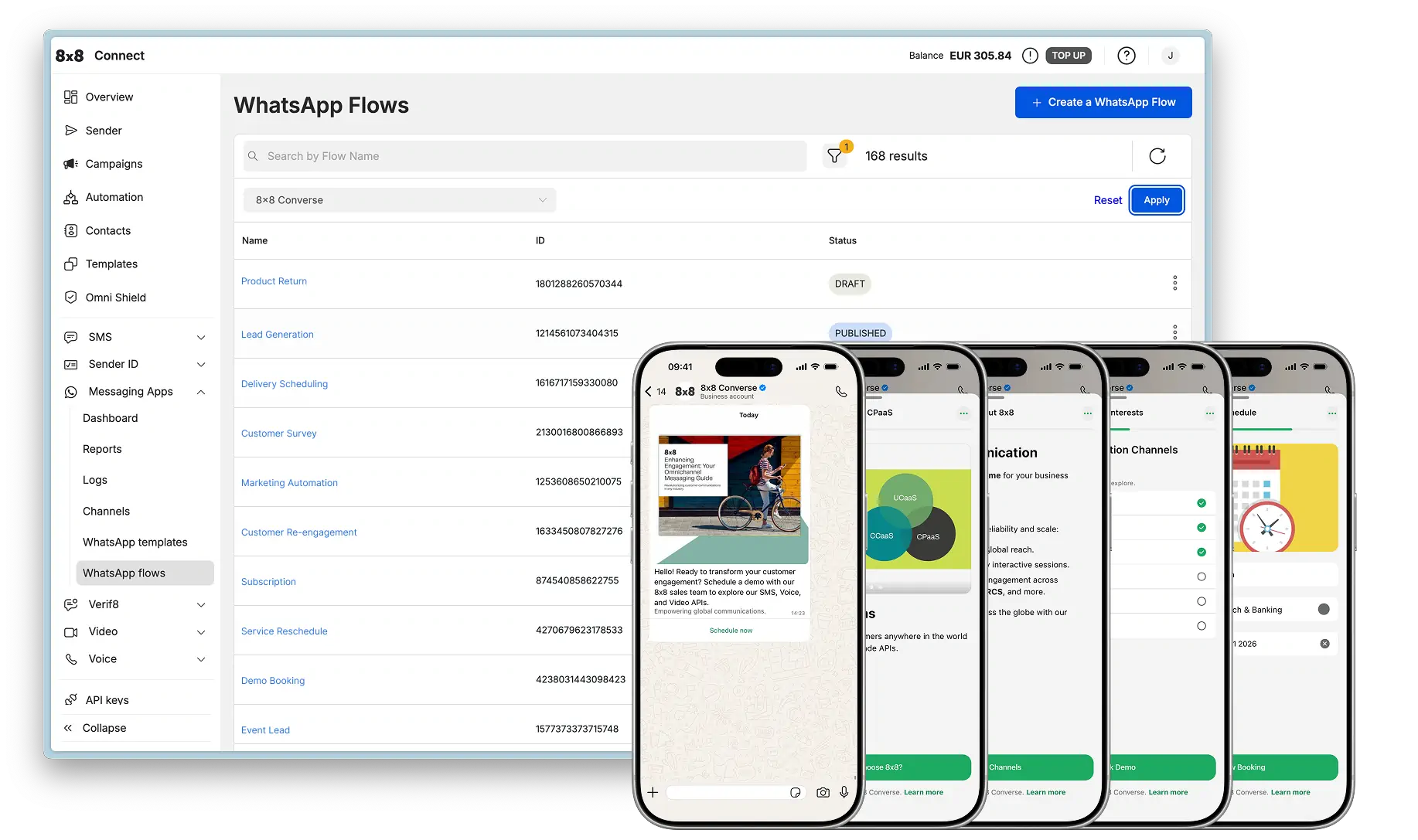
WhatsApp Flows enable you to collect structured input from customers using guided UI forms within the WhatsApp conversation. Instead of exchanging multiple back-and-forth text messages, Flows present users with an interactive, multi-step form that guides them through data entry with built-in validation and a polished user experience.
Overview
What are WhatsApp Flows?
WhatsApp Flows are interactive, form-based experiences that run directly inside WhatsApp. They allow you to:
- Collect structured data through form fields (text input, dropdowns, radio buttons, checkboxes, date pickers)
- Validate input in real-time before submission reaches your backend
- Guide users through multi-screen journeys with branching logic and conditional navigation
- Reduce conversation friction by replacing 10+ message exchanges with a single, intuitive form
When to Use Flows
Flows are ideal when you need to:
- Capture consistent, structured information for downstream automation (CRM, booking systems, ticketing)
- Reduce data entry errors with built-in validation and constrained inputs
- Improve user experience by providing a guided, mobile-optimized form interface
- Automate multi-step processes like appointment booking, lead qualification, or feedback collection
Flows vs. Automation Builder
Both tools help create interactive experiences, but serve different purposes:
| Feature | WhatsApp Flows | 8x8 Automation Builder |
|---|---|---|
| Best for | Structured form data collection | Conversational workflows and branching logic |
| User Experience | Native WhatsApp form UI | Text messages with buttons/lists |
| Data Collection | Single submission with all fields | Multiple message exchanges |
| Validation | Built-in field validation | Custom logic via branches |
| Integration | Both UI and API | Portal-based (visual workflow builder) |
| Use Case Example | Appointment booking form with date/time/service fields | Restaurant reservation bot with menu selection and confirmation |
Recommendation: Use Flows for data capture and Automation Builder for conversational workflows. You can combine both: use Automation Builder to trigger a Flow, then process the submission.
Common Use Cases
| Industry | Use Case | What Flows Collect | Next Action |
|---|---|---|---|
| Retail & eCommerce | Product finder / preferences | Size, style, budget, category | Product recommendations |
| Healthcare | Appointment scheduling | Location, specialty, preferred date/time | Create booking |
| Financial Services | Account onboarding | Identity fields, consent | Trigger KYC workflow |
| Logistics | Delivery rescheduling | New time window, address details | Update delivery system |
| Customer Support | Feedback collection | NPS score, satisfaction ratings, comments | Store in CRM |
| Real Estate | Property inquiry | Location, budget, bedrooms, move-in date | Agent assignment |
| Travel | Booking request | Destination, dates, travelers, preferences | Check availability |
Choosing Your Approach
8x8 provides two ways to work with WhatsApp Flows:
8x8 Connect UI (Recommended for Getting Started)
Visual, no-code interface for creating and managing Flows through the 8x8 Connect portal.
Benefits:
- No coding required
- Live preview while building
- Direct integration with Templates and Campaigns
- Export Flow JSON for version control
Best for:
- Business users and marketers
- Quick prototyping and testing
- Teams without developer resources
- One-off campaigns and promotions
API Integration (Advanced)
Programmatic control for automation and CI/CD workflows.
Benefits:
- Scriptable deployments
- Version control friendly
- Automated testing
- Integration with existing DevOps pipelines
Best for:
- Development teams
- Large-scale deployments
- Automated Flow management
- Complex integration requirements
Before You Begin
To implement WhatsApp Flows, you need:
- Active WhatsApp Channel in 8x8 Connect
- Webhook endpoint configured to receive Flow submissions (see WhatsApp Webhooks)
- For UI Approach: Access to 8x8 Connect portal
- For API Approach: Channel ID, Subaccount ID, and API Key
Note Flow submission data is delivered via webhooks as inbound messages. See WhatsApp Webhooks for webhook configuration.
How Flows Work
Flow Lifecycle
A typical Flow implementation follows this sequence:
1. Design       → Build Flow JSON definition (screens, fields, validation)
2. Create       → Upload Flow via 8x8 Connect UI or API
3. Preview      → Validate rendering and user experience
4. Publish      → Make Flow available for use in messages
5. Send         → Trigger Flow via Template or Interactive message
6. Submit       → User completes Flow; submission sent to webhook
7. Process      → Your system handles submission and responds
Key Concepts
Screens: Individual pages within a Flow. Users navigate between screens using footer buttons.
Navigation Modes:
- navigate: Opens the Flow to a specific screen, optionally passing data
- data_exchange: (Advanced) Enables dynamic data fetching from your server during Flow interaction
Terminal Screens: The final screen of a Flow, marked with "terminal": true. When users complete this screen, their submission is sent to your webhook.
Flow JSON: The complete definition of your Flow's structure, validation rules, and navigation logic. Can be created visually or coded manually.
Integration with Conversation Windows
Flows work within WhatsApp's conversation window rules:
- Business-Initiated (Template with Flow button): Use to start new conversations or re-open closed windows
- User-Initiated (Interactive Flow message): Use within the 24-hour customer service window
See Concepts & Fundamentals for complete conversation window rules.
Documentation Structure
This documentation is organized into focused guides for different needs:
For Business Users & Marketers
- Creating Flows with 8x8 Connect UI - Step-by-step guide for creating, testing, and deploying Flows using the visual interface
- Flow Examples - Industry-specific, production-ready Flow implementations you can adapt
For Developers
- Flow API Reference - Complete API documentation for programmatic Flow management
- Flow Component Reference - Technical reference for all UI components and their properties
For Everyone
- Best Practices & Governance - Design guidelines, security, testing, and troubleshooting
Quick Start Guides
Option 1: Build Your First Flow (UI)
- Review Flow Examples to find a similar use case
- Copy the Flow JSON from the example
- Follow the UI Guide to create and publish
- Send to test users via Templates or Interactive messages
- Monitor submissions in the 8x8 Connect portal
Time: 15-30 minutes
Option 2: Integrate via API
- Review API Reference for authentication and endpoints
- Create Flow programmatically with POST request
- Publish the Flow
- Configure webhook to receive submissions
- Send Flow via Template or Interactive message API
Time: 1-2 hours (including webhook setup)
Next Steps
Choose your path based on your role and needs:
For Business Users: → Creating Flows with 8x8 Connect UI
For Developers: → Flow API Reference
For Everyone: → Flow Examples - See production-ready examples
Need Help with Components? → Flow Component Reference
Want Best Practices? → Best Practices & Governance
Additional Resources
- WhatsApp Webhooks - Configure webhooks to receive Flow submissions
- Template Message API - Send Flows via business-initiated messages
- Interactive Message API - Send Flows within service window
- Meta WhatsApp Flows Official Documentation - WhatsApp's official Flow documentation
- 8x8 Automation Builder - Combine Flows with conversational workflows