WhatsApp in 8x8 Connect
Beyond the API, the 8x8 Connect portal offers three powerful, ready-to-use solutions to manage your WhatsApp communications. This section provides an overview of how to use Campaigns for bulk messaging, 8x8 Converse for agent-based support, and the Automation Builder for creating no-code workflows.
Campaigns (formerly MCS) with WhatsApp
The Campaigns tool in 8x8 Connect allows you to send high-volume, template-based WhatsApp messages to a list of your customers. This is ideal for marketing announcements, proactive notifications, and re-engagement campaigns.
How to Send WhatsApp Messages using Campaigns
Sending WhatsApp Messages through Campaigns follows a simple, step-by-step process in the portal:
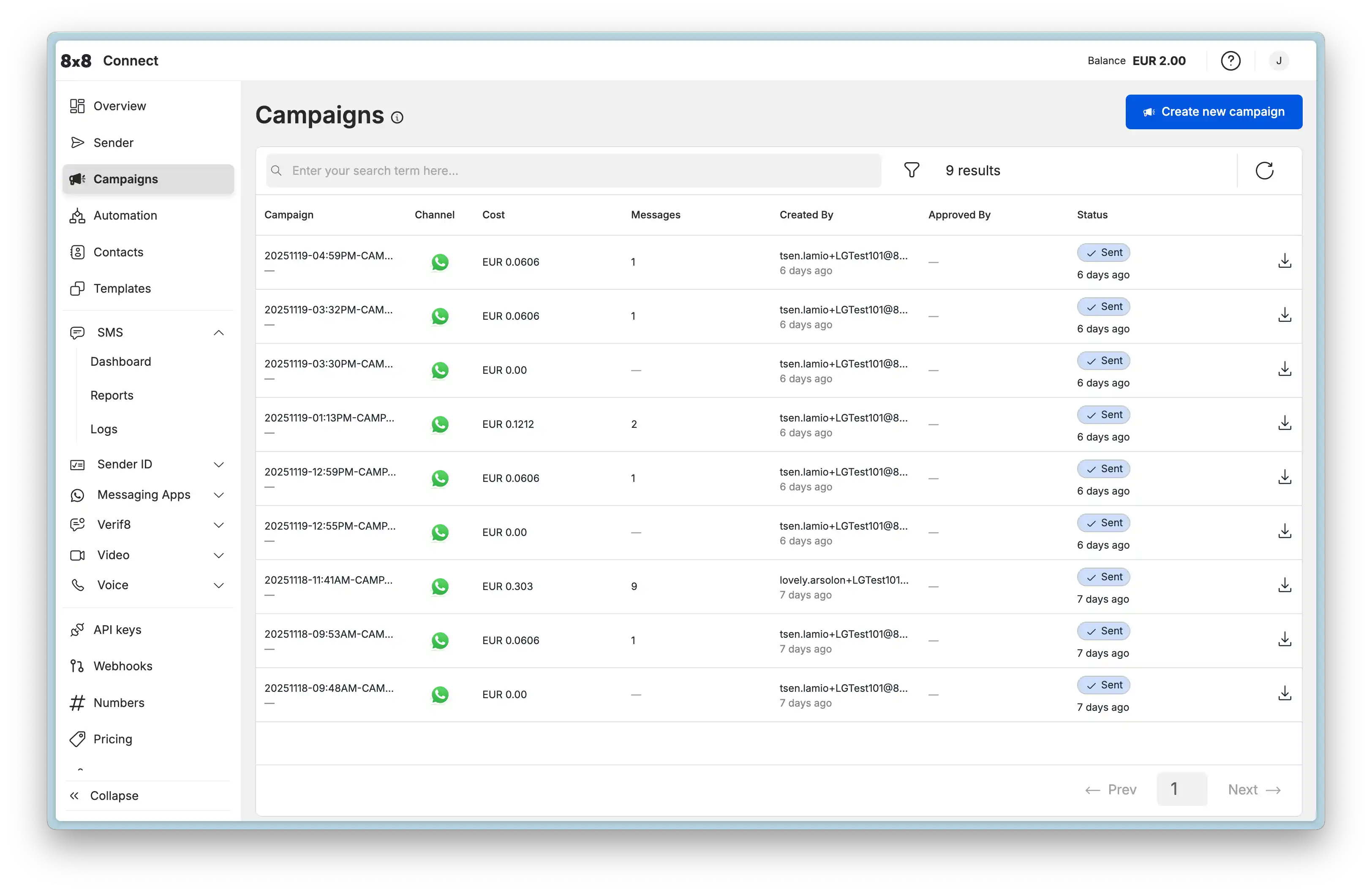
- Select Channel: Navigate to Campaigns from the main menu, click "Create a new campaign", and select "Messaging Apps".
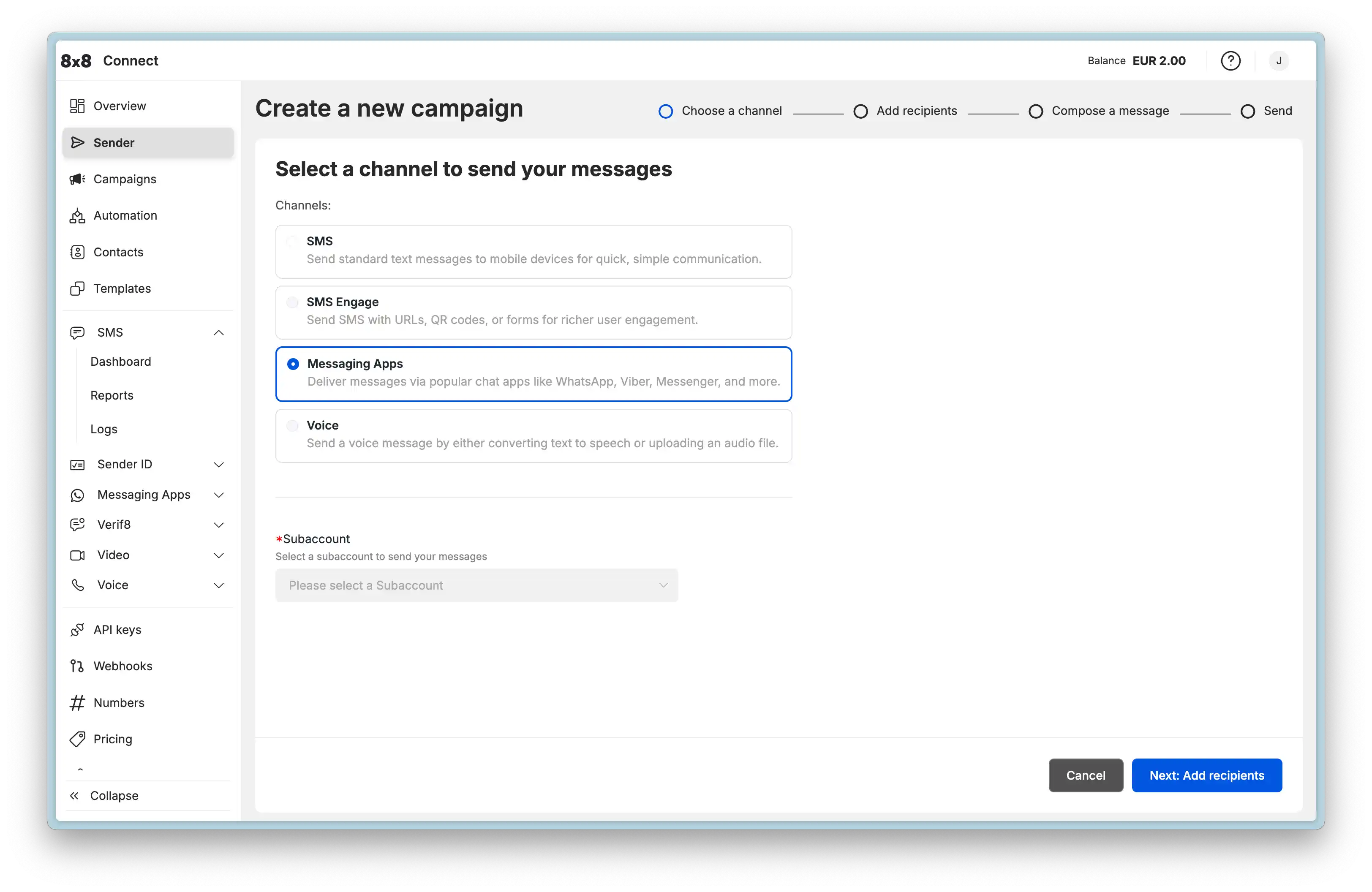
- Choose Sender: Select the Subaccount and to specify the WhatsApp Channel you want to send from.
-
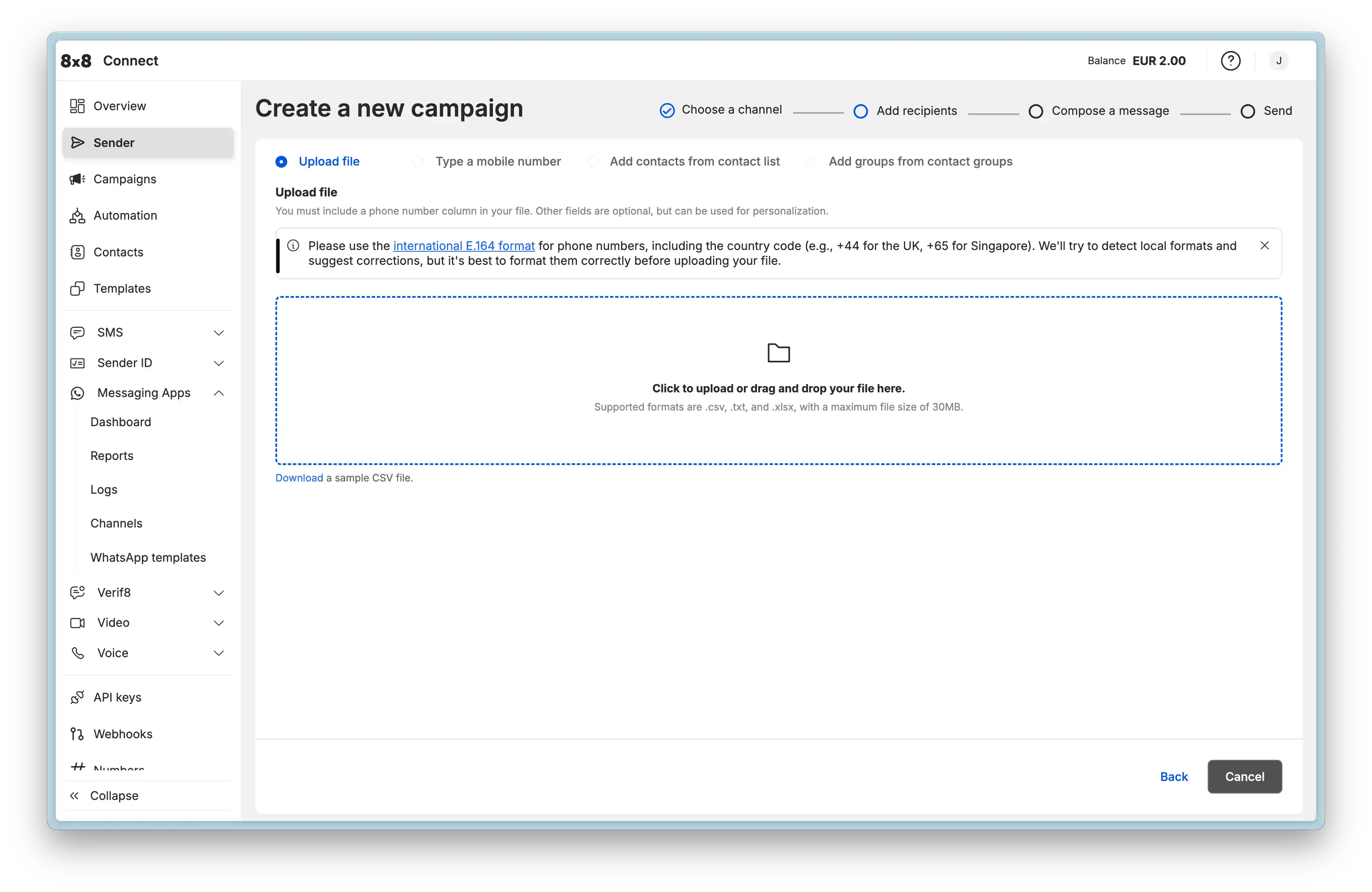
Add Recipients: Upload your customer list. You can:
-
Upload a file (.csv, .txt, .xlsx) containing phone numbers and data for personalization.
-
Manually type in numbers.
-
Select contacts from your saved Contact Groups.
-
-
Map Fields: If you upload a file, you will map your columns to system fields (like
Mobile) or custom fields (likeFirstName) that can be used as variables. -
Compose Message:
-
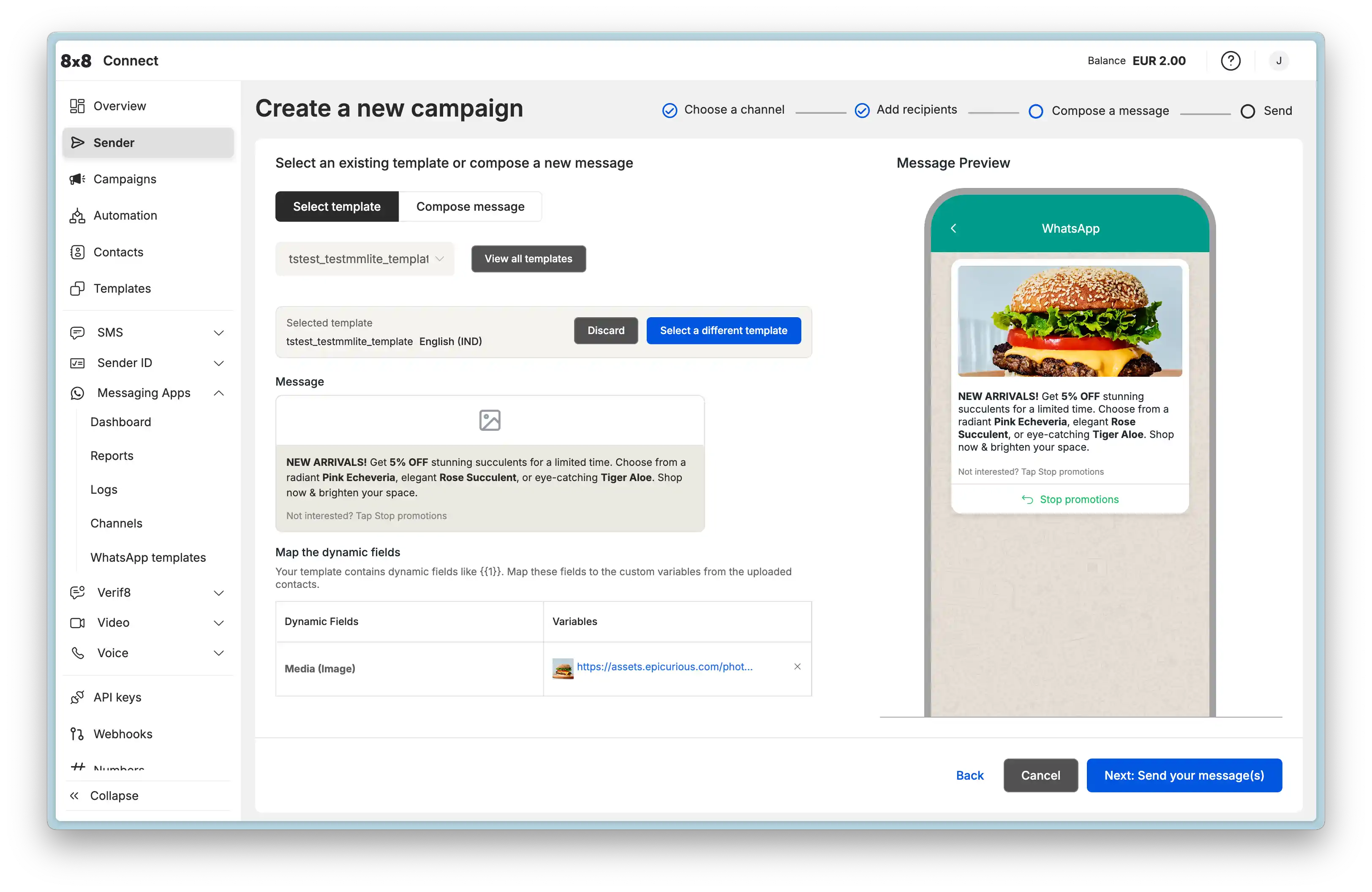
Select Template or Compose Message: You have two options for your message content:
-
Use a WhatsApp Template: Select an approved WhatsApp Template from the list. This is mandatory if you are initiating a conversation or contacting users outside the 24-hour customer service window.
-
Variable Mapping: If your template has variables (e.g.,
{{1}}), you can map them to the custom fields from your uploaded file (e.g., map{{1}}to yourFirstNamecolumn). -
Media Replacement: If your template includes a media header (image, video, document), you can specify the media to be used. You can either provide a publicly accessible Media URL or use the direct file upload option to have 8x8 host the media.
-
-
Compose a Text Message: You can write a freeform text message. This option will only be delivered to recipients who are within the 24-hour customer service window (i.e., they have messaged you in the last 24 hours).
-
-
Media Optimization: All media (from URLs or direct uploads) is automatically processed and optimized by Meta's media hosting. This ensures fast, reliable delivery without you needing to manage resource availability.
-
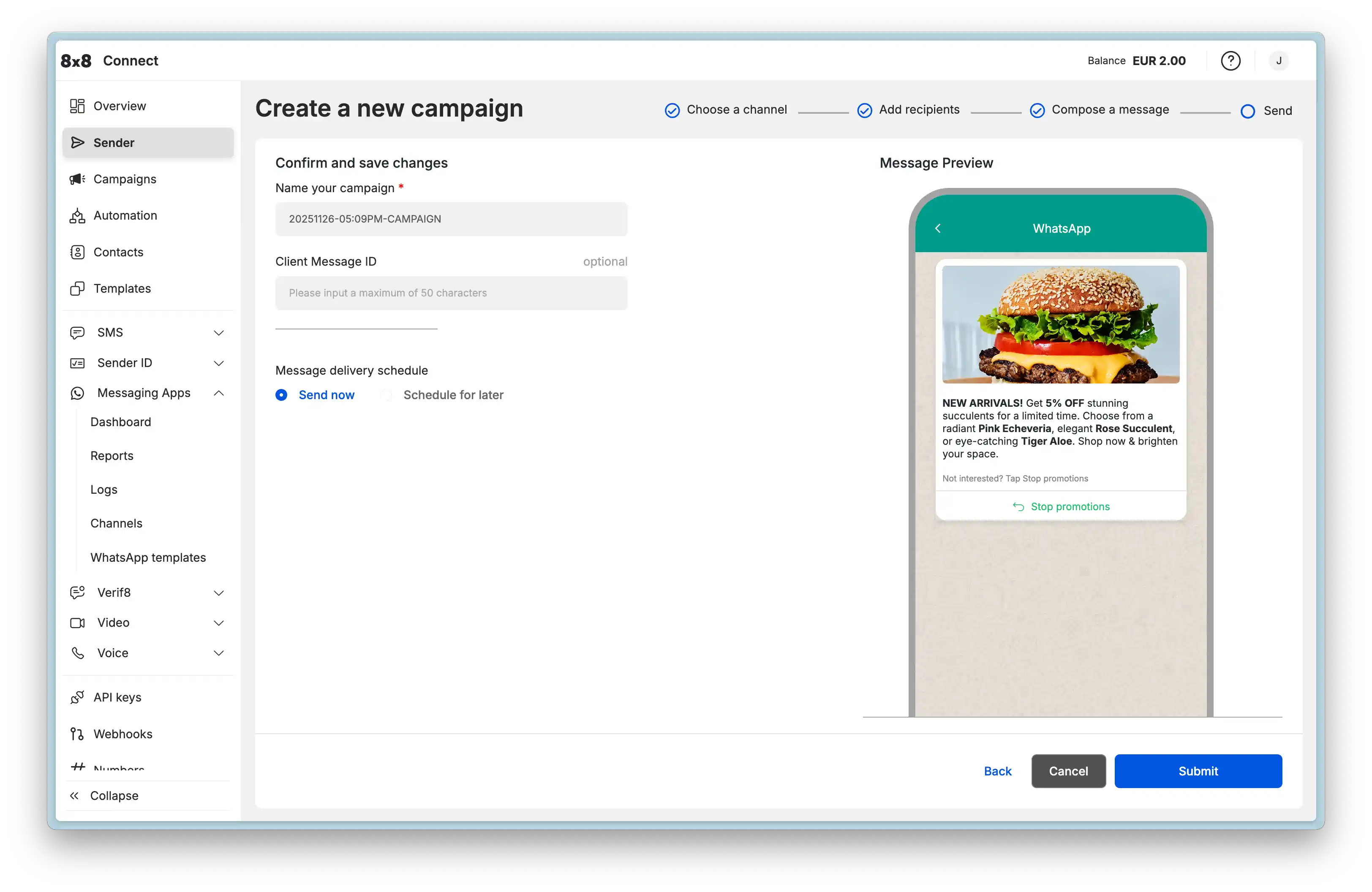
- Review and Send: Name your campaign, review the details, and choose to send it immediately or schedule it for a later time.
WhatsApp in 8x8 Converse (Agent Experience)
8x8 Converse is a chat-based customer service platform that allows your support agents to manage two-way conversations with customers across multiple channels, including WhatsApp.
How it Works
When a customer sends a WhatsApp message to your business phone number, 8x8 Converse can automatically route that message as a "ticket" to the correct agent or support queue.
-
Unified Inbox: Agents see all customer conversations, whether from WhatsApp, SMS, or other channels, in a single, unified inbox.
-
Two-Way Chat: Agents can reply to customers directly from the Converse portal. Because these are user-initiated replies, agents can send freeform (non-template) messages, including text and media, within the 24-hour customer service window.
-
Ticket Management: Conversations are managed as tickets with statuses like New, Open, Pending, or Resolved, allowing for a structured support workflow.
-
Advanced Queuing: As an administrator, you can configure queues to automatically route incoming WhatsApp messages to specific agents based on rules, such as:
-
Channel-based queueing: Send all messages from a specific WhatsApp number to a dedicated team.
-
Country-based queueing: Route messages from specific country codes to agents who speak the local language.
-
Customer group-based queueing: Route messages from "VIP" customers (managed in your 8x8 Contacts) to a priority queue.
-
WhatsApp in 8x8 Automation Builder
The 8x8 Automation Builder is a visual, no-code tool in the 8x8 Connect portal that lets you create powerful, automated communication workflows. WhatsApp is a fully integrated channel in the Automation Builder.
How it Works
You can create workflows that are triggered by incoming WhatsApp messages or perform actions like sending WhatsApp messages.
Common Use Cases:
-
Chatbots & Menus: Create an automated chatbot that is triggered by an inbound WhatsApp message. You can send a menu ("Press 1 for support, Press 2 for hours") and use the Branch and Wait For Reply steps to guide the user.
-
Opt-Out Handling: Automatically listen for keywords like "STOP" on your WhatsApp number. When a user sends "STOP," you can trigger a workflow that calls an API to add them to a "do-not-contact" list and sends a confirmation message.
-
External System Integration: Connect WhatsApp to other business tools. For example, you can build a workflow that:
-
Receives a WhatsApp message (e.g., "Schedule appointment").
-
Uses the HTTP Request step to check your Google Calendar for an open slot.
-
Sends a WhatsApp message back to the user with the available times.
-
Waits for their reply.
-
Sends another HTTP Request to book the appointment in your system.
-