WhatsApp Business App Coexistence
Coexistence lets you connect a phone number that is already in use with the WhatsApp Business app to the WhatsApp Business Platform (Cloud API) — through 8x8 Connect or the 8x8 ChatApps API — and keep using both at the same time. Your team continues to answer 1:1 chats in the mobile app, while 8x8 Connect and the ChatApps API handle templates, campaigns, automation, and reporting on that same number.
Why Coexistence Matters
Without coexistence, adopting the platform means acquiring a second phone number. The standard onboarding path in Getting Started with WhatsApp requires a number that is not currently associated with any WhatsApp account. For a business whose customers already know one number, that leaves two bad options: abandon the established number and its chat history, or run two disconnected numbers and confuse customers.
Coexistence removes that trade-off:
- Keep your number: the number stays on the WhatsApp Business app and becomes a channel in 8x8 Connect at the same time.
- Keep your contacts: all contacts with a WhatsApp number can be synchronized to the platform.
- Keep manual chats: agents continue to reply from the mobile app for personal, one-to-one conversations. Messages are mirrored between the app and the platform.
- Add platform capabilities: template creation, ChatApp campaigns, and sending behave exactly as they do on an existing Cloud API channel. The only difference is the phone number you are using, and the fact that customers can be answered from the WhatsApp Business app.
Where Coexistence Fits Among Channel Types
Every WhatsApp channel in 8x8 Connect carries a tag that tells you which sending paths it supports. Hover the tag in the portal to see the same explanation.
| Channel Tag | Where You Can Send From | What It Means |
|---|---|---|
| Cloud API | Platform only | Standard WhatsApp Cloud API for all template messages (Marketing, Utility, Authentication). The WhatsApp mobile app cannot be used with this number. |
| MM Lite API | Platform only | Optimized MM Lite API for Marketing templates; Utility and Authentication templates use standard Cloud API. The WhatsApp mobile app cannot be used with this number. |
| WhatsApp Business | Platform and phone | Coexistence. You can use 8x8 Connect for automation and the WhatsApp Business mobile app to chat directly with customers on the same number. |
A number onboarded through coexistence shows the WhatsApp Business tag once the flow completes.
Requirements
Before you start, confirm the following:
- A number already in use with the WhatsApp Business app. Coexistence onboards an existing Business app number. It does not register a new one.
- WhatsApp Business app version 2.24.17 or higher on the device that holds the number.
- An 8x8 Connect account with the 8x8 Messaging Apps product enabled, plus administrator access to both 8x8 Connect and the Meta Business Portfolio that will own the WhatsApp Business Account (WABA). See Prerequisites & Checklist for the full list.
- A supported market. Coexistence onboarding is not available everywhere. Meta's European and Global Expansion launch removed geographic restrictions for businesses in the EU and UK, Japan, Australia, the Philippines, South Korea, and Russia, and Business app users in India can also onboard. South Africa and Nigeria are not available. Availability is controlled by Meta and changes over time, so confirm with your 8x8 account manager if you are unsure about a specific country.
🚧 Meta does not currently support migrating a number between BSPs
If this number was previously onboarded to Cloud API through a different BSP (Business Solution Provider), disconnecting or offboarding it from that provider does not immediately clear it to onboard with 8x8. Meta does not currently support this kind of provider-to-provider migration, so you should expect to see an error during the Embedded Signup flow when you try to connect through 8x8 — this is a known limitation, not a configuration issue on your side. Contact 8x8 support with the error so it can be raised with Meta before you retry.
Separately, Meta's own documentation also notes that a business that still shares a previous provider's credit line may see an error when switching providers, even outside the migration case above.
How to Connect a WhatsApp Business App Number
Onboarding runs through Meta's Embedded Signup flow, launched from the 8x8 Connect portal. Part of the flow happens in the browser and part happens on the phone that holds the number, so keep the device to hand.
-
Start the channel connection flow: in 8x8 Connect, open the subaccount that should own the channel, go to the Channels page, and click + Connect Channel.
-
Select WhatsApp from the list of channel options. The Meta-hosted Embedded Signup window opens.
-
Choose to connect your existing WhatsApp Business app account. Instead of the usual business asset selection screen, Embedded Signup offers the option to connect the WhatsApp Business app account you already have. If this number was previously onboarded to Cloud API through a different BSP, this is the step where you will likely hit an error — see the note under Requirements above before you start.
-
Enter your WhatsApp Business app phone number. WhatsApp then displays a verification code and instructions.
-
Confirm the connection on the phone. In the WhatsApp Business app you receive a message from the official Facebook Business Account. Tap Connect, then tap Connect to the Business Platform, then tap Confirm. Finish by pasting the verification code or scanning the QR code.
-
Complete the remainder of the Embedded Signup flow. When it finishes, the number appears as a channel in 8x8 Connect with the WhatsApp Business tag, and the WhatsApp Business app refreshes to show that the number is now connected to the API.
| Step 3 — In the browser | Step 5 — On the phone |
|---|---|
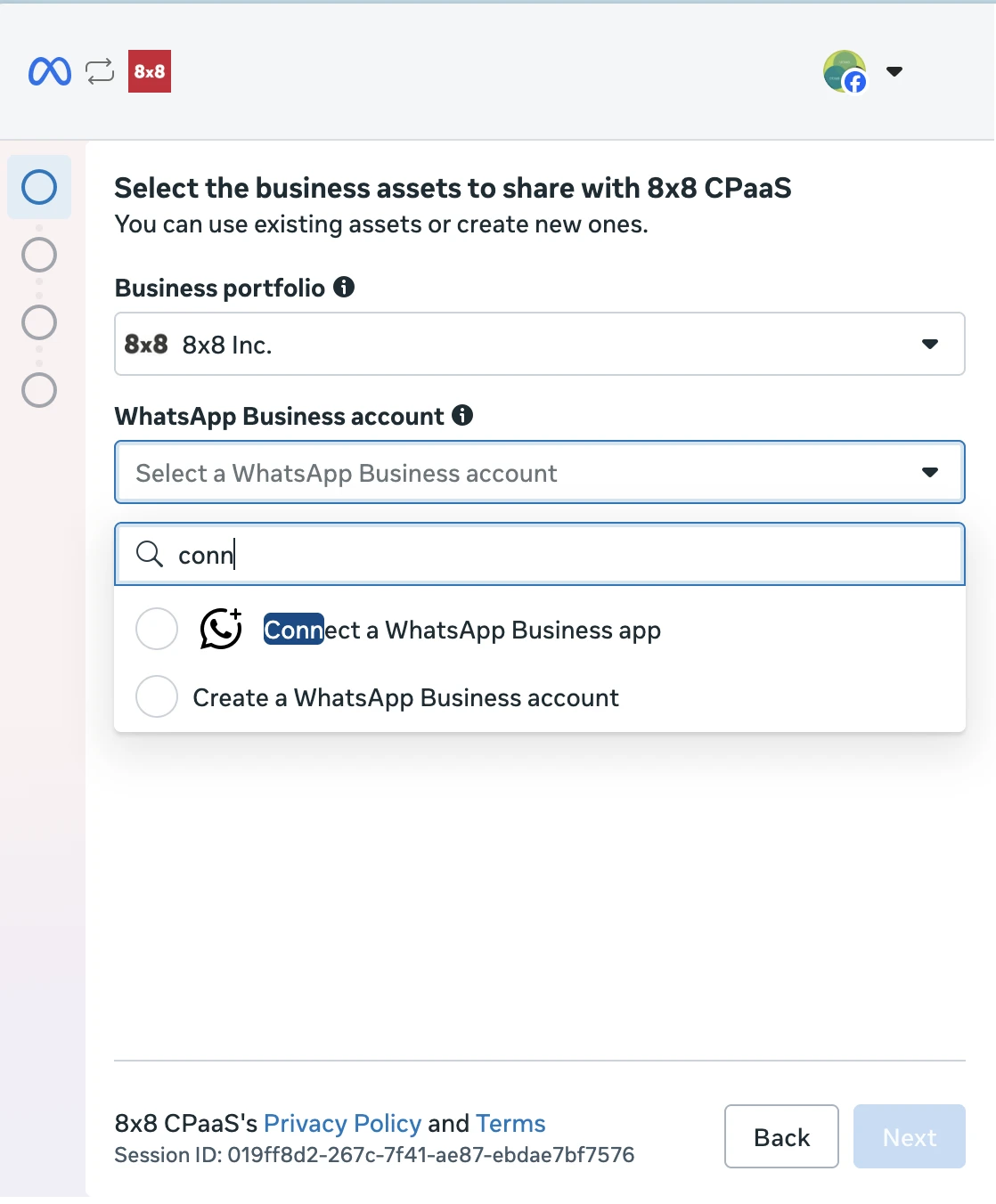 | 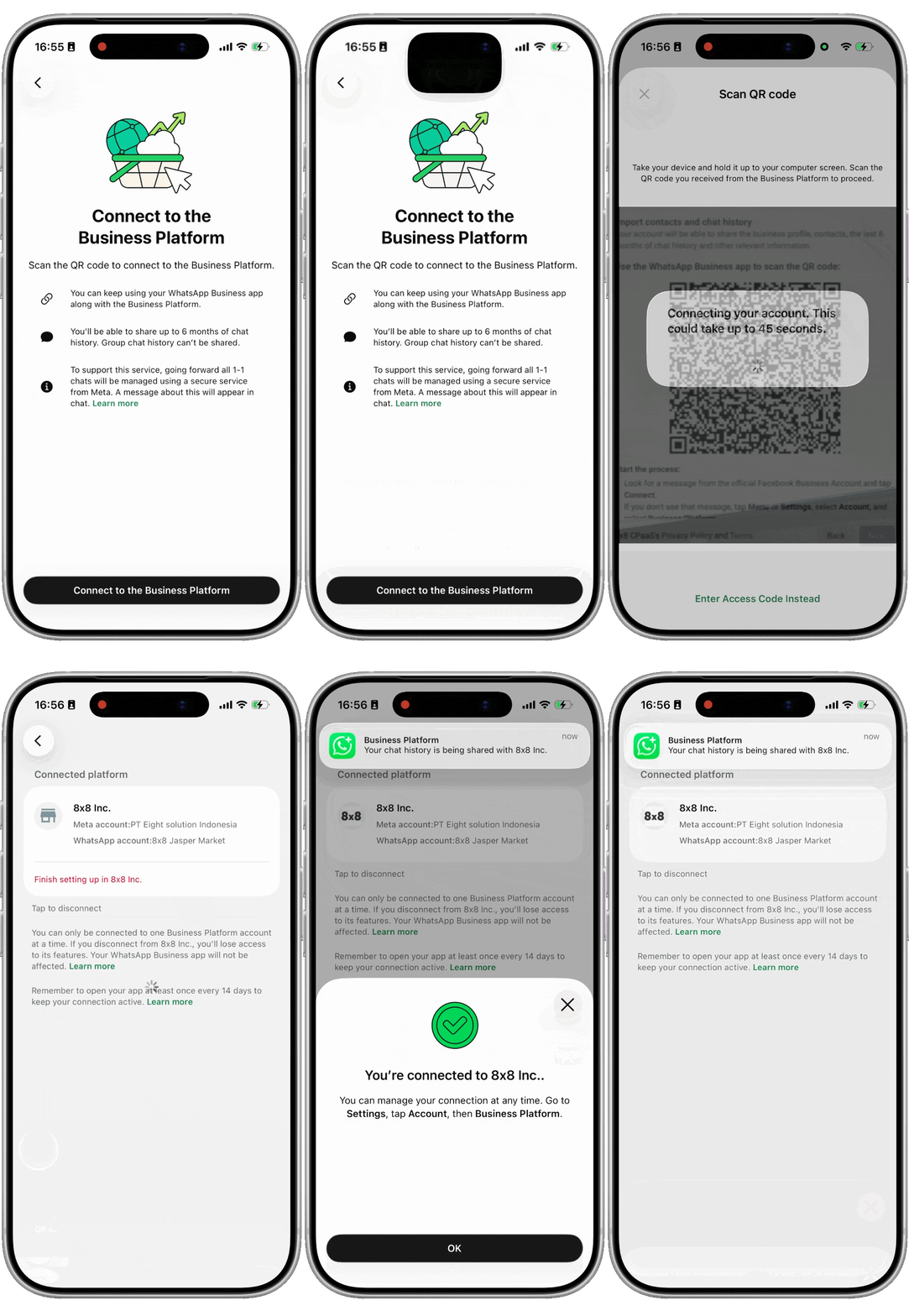 |
| Select Connect a WhatsApp Business app from the WhatsApp Business account list. | Scan the QR code (or enter the code) to finish connecting on the phone that holds the number. |
📘 Keep the app open while syncing
Onboarding and contact syncing typically take about 15 to 20 minutes. Keep the WhatsApp Business app open and connected during this period so the sync can complete.
Once the channel exists, everything downstream is the standard WhatsApp experience: create templates and send campaigns as described in Message Types & Templates and WhatsApp in 8x8 Connect, or send programmatically with WhatsApp over 8x8 API.
What Changes on the WhatsApp Business App
Connecting the number changes a small set of WhatsApp Business app behaviors. Everything else in the app keeps working as before.
| WhatsApp Business App Feature | After Connecting to the Platform | Available Through the Platform? |
|---|---|---|
| Individual (1:1) chats | Message edit and revoke become supported. | Yes. Messages sent and received are mirrored between the platform and the app. |
| Contacts | No change. | Yes. All contacts with a WhatsApp number can be synchronized. |
| Group chats | No change. | No. Group chats are not synchronized. |
| Disappearing messages | Turned off for all 1:1 chats. | No. |
| View once messages | Disabled for all 1:1 chats. | No. |
| Live location messages | Disabled for all 1:1 chats. | No. |
| Broadcast lists | Disabled. You cannot create new broadcast lists, and existing ones become read-only. | No. |
| Voice and video calls | No change. | No. |
| Business tools (catalog, orders, status) | No change. | No. |
| Messaging tools (greeting message, away message, quick replies, labels) | No change. | No. |
| Business profile (name, address, website) | No change. | No. |
| Channels | No change. | No. |
🚧
Use campaigns on the platform instead of broadcast lists. Broadcast lists become read-only as soon as the number is connected, and existing lists cannot be re-created.
Linked (Companion) Devices
A business can link up to four WhatsApp companion clients (described as linked devices in WhatsApp's Help Center) to the Business app account.
- All companion clients are supported except WhatsApp for Windows and WhatsApp for WearOS.
- When the number is onboarded, all companion apps are unlinked from the account. Re-link the supported ones afterwards.
- A WhatsApp user on an unsupported companion client can still message you, but that message does not trigger inbound message webhooks, so it will not appear on the platform. Messages you send are shown on unsupported companion devices as placeholder text asking the user to open their primary device.
- If an inbound message arrives as an unsupported message carrying Meta error code
131060, check the WhatsApp Business app for it. This is expected either the first time a user messages you (it usually clears within a few seconds) or when the user is on an unsupported companion device.
Contacts and Business Profile Sync
Contacts and your business profile are shared with the platform automatically when you onboard. Today the sync is one-directional: changes you make to contacts and profile in the WhatsApp Business app are reflected on the platform, but changes made on the platform are not pushed back to the app.
This sync must be started within 24 hours of onboarding, otherwise the number has to be offboarded and onboarded again. 8x8 starts it for you as soon as the flow completes, which is why you should stay in the flow and keep the app open rather than closing the browser and coming back later.
After onboarding, new contact changes in the app continue to flow through to the platform, and every message your team sends from the WhatsApp Business app is echoed to the platform so it can be shown in the conversation thread and counted in reporting.
Messaging Windows, Billing, and Reporting
The 24-Hour Customer Service Window
The 24-hour customer service window works exactly as it does on any other WhatsApp channel, with two coexistence-specific points:
- A customer service window opens only when a WhatsApp user messages you after the number has been onboarded. If a user messaged you shortly before onboarding completed, no window exists for that conversation and your first reply from the platform must be a template message.
- Messages sent from the WhatsApp Business app are not subject to the customer service window, and they do not create, extend, or otherwise affect a Cloud API conversation window or Cloud API pricing.
What Is Chargeable
| How the Message Is Sent | Chargeable? |
|---|---|
| Template message sent through Cloud API (platform or API) | Yes. Charged at standard WhatsApp rates for its category. |
| Message sent manually from the WhatsApp Business app | No. Messages sent from the app remain free. |
| Freeform message sent through Cloud API inside an open customer service window | Yes. Charged as a service message, after the monthly free tier. See the pricing rules for the customer service window. |
Charging and invoicing are identical to an existing WhatsApp Cloud API account: a prepaid account needs sufficient balance to send, and a postpaid account receives a monthly invoice.
Reporting Categories
Messages sent manually from the WhatsApp Business app are reported under a dedicated WA Business category, so you can separate them from chargeable API traffic. In the 8x8 Connect Reports and Logs views (see Analytics & Monitoring in 8x8 Connect), the full set of categories is:
- Authentication
- Authentication International
- Marketing
- Marketing (MM Lite)
- Utility
- Service
- WA Business (messages sent manually through the WhatsApp Business app)
Tracking Business App Messages Programmatically
Every message your team sends from the WhatsApp Business app is forwarded to your configured webhook as an external_app_message event, so your own application can mirror it in the conversation thread. This is the 8x8 representation of Meta's smb_message_echoes webhook.
Sample JSON Payload:
{
  "version": 9,
  "namespace": "ChatApps",
  "eventType": "external_app_message",
  "description": "External App Message",
  "payload": {
    "umid": "<UNIQUE_MESSAGE_ID>",
    "subAccountId": "<SUBACCOUNT_ID>",
    "timestamp": "2026-01-28T09:16:53.00Z",
    "channel": "whatsapp",
    "user": {
      "msisdn": "+15551234567",
      "channelUserId": "US.13491208655302741918"
    },
    "type": "Text",
    "content": {
      "text": "Here's the info you requested!"
    }
  }
}
Key Fields:
eventType:external_app_message, instead of theoutbound_message_status_changedused by delivery receipts.payload.user.msisdn: the phone number of the WhatsApp user the message was sent to.payload.user.channelUserId: the recipient's Business-Scoped User ID.payload.typeandpayload.content: the type and contents of the message your team sent from the app.
These events do not carry status, batchId, clientMessageId, or clientBatchId, because they describe a message 8x8 did not send.
📘 Full webhook reference
For the complete field reference and the v8 payload shape, see Delivery receipts for Outbound Messaging Apps.
Throughput and Other Constraints
- Fixed throughput of 20 messages per second. To stay compatible with the WhatsApp Business app, a number in use with both the app and Cloud API is capped at a fixed 20 mps. Plan campaign sizes and send windows around this. Numbers that are not on the Business app are not subject to this cap.
- Group chats are out of scope. They are neither synchronized nor available through the platform.
- Meta Verified. A business that already has a Meta Verified badge keeps it when onboarding through this flow, and a business without one can apply for Meta Verified afterwards. Applying for a WhatsApp Official Business Account through this flow is not available.
- Messaging limits and quality rating are unchanged. See Quality Rating & Messaging Limits.
Device Changes: Offboarding and Automatic Reconnection
If the number changes devices, the WhatsApp Business app is reinstalled, or the number is re-registered, the Cloud API side is automatically offboarded. Reconnection is designed to be automatic:
- The Cloud API companion is offboarded when the device change or re-registration happens.
- During the profile creation step of WhatsApp Business registration on the new device, the previously connected Cloud API products are listed with a pre-checked opt-in.
- If the opt-in is left checked, reconnection runs in the background and typically completes within a few minutes. An in-app notification confirms it.
While reconnection is in progress:
- Cloud API sending and receiving are suspended. Messages sent from the platform or the API during this period fail or may not be delivered. Pause scheduled campaigns until reconnection completes.
- WhatsApp Business app messaging is briefly unavailable while re-registration runs, then resumes.
After reconnection, Cloud API messaging resumes automatically. Companion devices such as WhatsApp Web are not re-linked automatically and must be re-linked manually.
🚧
Reconnection eligibility is lost if a different provider onboards the WABA during the reconnection window. Do not start onboarding with another provider while waiting for a number to reconnect.
Disconnecting from the Platform
A coexistence number cannot be deregistered from Cloud API through the API, because it is in use with the WhatsApp Business app at the same time. To disconnect, use the WhatsApp Business app: go to Settings > Account > Business Platform and tap Disconnect Account.
Disconnection can also be triggered by WhatsApp itself, for example when the primary device has been inactive for roughly 14 days, a companion device has been inactive for roughly 30 days, the number is changed, or the number is registered with the consumer WhatsApp app.
Related Resources
Before You Onboard:
- Getting Started with WhatsApp - Account structure, prerequisites, and the standard new-number onboarding path.
- Concepts & Fundamentals - The 24-hour window, template categories, quality rating, and messaging limits.
After You Onboard:
- Message Types & Templates - Create and manage the templates you will send from the connected number.
- WhatsApp in 8x8 Connect - Send with Campaigns, handle conversations in 8x8 Converse, and automate with the Automation Builder.
- Operations, Monitoring & Troubleshooting - Dashboards, reports, logs, and error handling.
For Developers:
- WhatsApp over 8x8 API - Authentication, endpoints, and send payloads.
- Delivery receipts for Outbound Messaging Apps - Full reference for the
external_app_messagewebhook. - Business-Scoped User IDs - How
channelUserIdidentifies WhatsApp users alongside their phone number.
External:
- Meta: Onboard WhatsApp Business app users - Meta's own coexistence reference, including the feature comparison table and webhook payloads.
- Meta: Reconnect offboarded coexistence clients - Device-change offboarding and automatic reconnection.