WhatsApp Media Hosting & Management
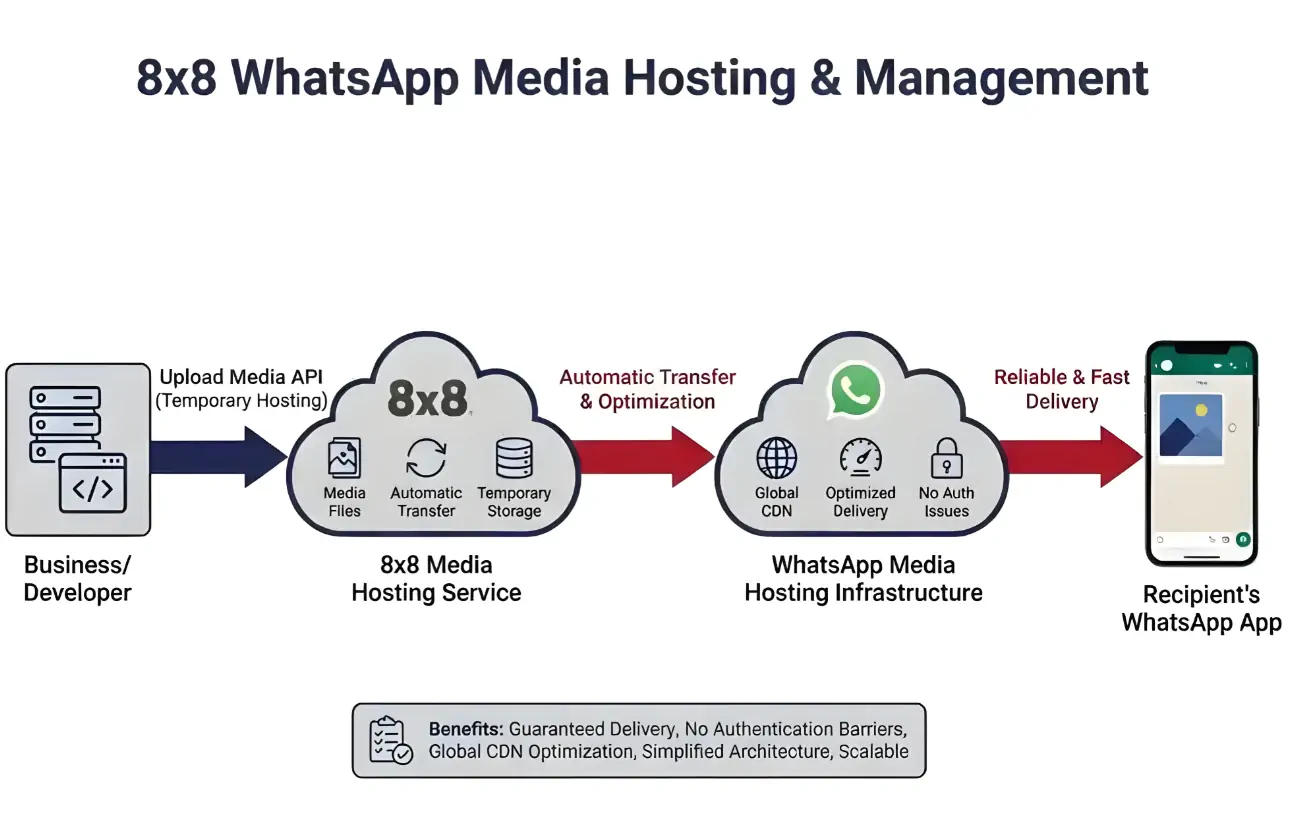
Ensure reliable and fast media delivery in your WhatsApp messages by leveraging the 8x8 media hosting service. When you upload media files through the 8x8 API, they are automatically transferred to WhatsApp's media hosting infrastructure during message sending, guaranteeing optimal delivery performance and reliability.
Overview
The 8x8 platform provides a robust media management workflow that ensures your WhatsApp media messages are delivered reliably and efficiently:
- Upload your media files to 8x8's temporary hosting via the Upload Media API
- Reference the uploaded media URL in your WhatsApp message payloads
- Automatic Transfer to WhatsApp's infrastructure happens during message sending
- Reliable Delivery is ensured through WhatsApp's optimized global CDN
This architecture eliminates common media delivery issues such as slow loading times, unreachable URLs, geographical restrictions, and authentication barriers.
Why Use 8x8 Media Hosting?
Reliability Benefits:
- Guaranteed Delivery: Media is transferred directly to WhatsApp's infrastructure, eliminating third-party hosting dependencies
- No Authentication Issues: Bypasses authentication requirements that can block WhatsApp from fetching externally hosted media
- Geographical Optimization: WhatsApp's global CDN ensures fast delivery regardless of recipient location
- Consistent Performance: Avoids slow or unreliable third-party hosting that can cause message failures
Operational Benefits:
- Simplified Architecture: No need to maintain public-facing media hosting infrastructure
- No CDN Required: Eliminates the need for your own Content Delivery Network
- Security: Temporary hosting ensures media is only accessible during the message creation process
- Scalability: Handles high-volume campaigns without infrastructure concerns
Supported Media Types & Limits
WhatsApp supports multiple media types through the 8x8 platform. Each type has specific format requirements and file size limitations imposed by Meta.
Media Type Specifications
| Media Type | Supported Formats | Maximum File Size | Common Uses |
|---|---|---|---|
| Image | JPEG (.jpeg, .jpg)PNG ( .png) | 5 MB | Product images, promotional graphics, QR codes, infographics, receipts |
| Video | MP4 (.mp4)3GP ( .3gp) | 16 MB | Product demos, tutorials, promotional videos, short clips |
| Document | PDF (.pdf)Word ( .doc, .docx)Excel ( .xls, .xlsx)PowerPoint ( .ppt, .pptx)Text ( .txt) | 100 MB | Invoices, contracts, receipts, product catalogs, user manuals, reports |
| Audio | AAC (.aac)M4A ( .m4a)AMR ( .amr)MP3 ( .mp3)OGG ( .ogg)OPUS ( .opus) | 16 MB | Voice messages, audio instructions, music clips, podcasts |
📘 Format Compatibility
For a complete list of supported content types across all messaging channels, see the Supported Messaging Apps Content Types reference.
Media Quality Recommendations
While WhatsApp allows files up to the maximum sizes listed above, following these recommendations will ensure optimal delivery performance:
- Images: Keep under 1 MB for fastest loading; use PNG format for graphics with transparency, JPEG for photos
- Videos: Compress to under 10 MB when possible; use H.264 codec for maximum compatibility
- Documents: Optimize PDFs (compress images within PDFs) to reduce file size
- Audio: Use AAC or MP3 format with appropriate bitrate (128-192 kbps for voice, 256+ kbps for music)
Recommended Image Dimensions:
- Template Headers: 1200 x 630 pixels (1.9:1 ratio)
- Interactive Messages: 1080 x 1080 pixels (1:1 ratio) or 1200 x 630 pixels (1.9:1 ratio)
- Carousel Cards: 1080 x 1080 pixels (1:1 ratio)
Uploading Media Files
Use the Upload Media API to upload files to 8x8's temporary hosting service. Once uploaded, you'll receive a response containing the file name and token that can be used to construct the media URL.
Upload Media API
Endpoint:
POST https://chatapps.8x8.com/api/v1/subaccounts/{subAccountId}/files
Authentication:
Authorization: Bearer YOUR_API_KEY
Request Format:
- Content-Type:
multipart/form-data - Body: File upload with key
file
Upload Example
curl -X POST "https://chatapps.8x8.com/api/v1/subaccounts/YOUR_SUBACCOUNT_ID/files" \
  -H "Authorization: Bearer YOUR_API_KEY" \
  -F "file=@/path/to/your/image.png"
Upload Response
When the upload succeeds, you'll receive a response containing the file name and token:
Response Body:
{
  "fileName": "f041c4fa554941b2acba0191859707b9.png",
  "token": "CfDJ8LwbBIzqYzxMo4VXraj4E8np2JMuXKnwMWzzWnhfPTnXEo7eCgiy7XIhp0HrdaHCbfusvZ0b29r0Txo86-zi4iXaPAXoE7JChY3sRqIbT-Aa0lNyAq_vAW-DhlbKRMcCR3cmBhPGf_cVOSpSKhGvvzujy5LpFfQu-DLtRI4oM3WUlEilCmLqm10eWyPCC5bhKA"
}
Response Headers:
content-type: application/json; charset=utf-8
location: /files/f041c4fa554941b2acba0191859707b9.png?token=CfDJ8LwbBIzqYzxMo4VXraj4E8np2JMuXKnwMWzzWnhfPTnXEo7eCgiy7XIhp0HrdaHCbfusvZ0b29r0Txo86-zi4iXaPAXoE7JChY3sRqIbT-Aa0lNyAq_vAW-DhlbKRMcCR3cmBhPGf_cVOSpSKhGvvzujy5LpFfQu-DLtRI4oM3WUlEilCmLqm10eWyPCC5bhKA
cache-control: no-store,no-cache
Response Fields:
fileName: The generated filename (UUID-based) for your uploaded filetoken: Authentication token required to access the file
Important Headers:
location: The relative path to access your uploaded file (includes both filename and token)
⚠️ Constructing the Media URL
To use the uploaded media in your messages, construct the full URL by combining the base URL with the
fileNameandtoken:https://chatapps.8x8.com/files/{fileName}?token={token}Example:
https://chatapps.8x8.com/files/f041c4fa554941b2acba0191859707b9.png?token=CfDJ8LwbBIzqYzxMo4VXraj4E8np2JMuXKnwMWzzWnhfPTnXEo7eCgiy7XIhp0HrdaHCbfusvZ0b29r0Txo86-zi4iXaPAXoE7JChY3sRqIbT-Aa0lNyAq_vAW-DhlbKRMcCR3cmBhPGf_cVOSpSKhGvvzujy5LpFfQu-DLtRI4oM3WUlEilCmLqm10eWyPCC5bhKA
Retrieving Media Files
You can retrieve previously uploaded media files using the information from the upload response. The location header provides the complete path including the filename and token.
Get Media API
Endpoint:
GET https://chatapps.8x8.com/files/:fileName?token=YOUR_TOKEN
Authentication:
- The
tokenquery parameter (from the upload response) serves as authentication - No Bearer token header required
Get Media Example
curl -X GET "https://chatapps.8x8.com/files/f041c4fa554941b2acba0191859707b9.png?token=CfDJ8LwbBIzqYzxMo4VXraj4E8np2JMuXKnwMWzzWnhfPTnXEo7eCgiy7XIhp0HrdaHCbfusvZ0b29r0Txo86-zi4iXaPAXoE7JChY3sRqIbT-Aa0lNyAq_vAW-DhlbKRMcCR3cmBhPGf_cVOSpSKhGvvzujy5LpFfQu-DLtRI4oM3WUlEilCmLqm10eWyPCC5bhKA" \
  --output downloaded-image.png
💡 Quick Access
You can also paste the complete URL (with token) directly into your browser's address bar to download or view the file.
Media Upload Best Practices
1. Optimize Before Upload
Images:
- Compress images using tools like TinyPNG, Squoosh, or ImageOptim
- Target file size: < 500 KB for templates, < 1 MB for all images
- Use JPEG for photographs, PNG for graphics with transparency
- Resize to recommended dimensions (1200x630 or 1080x1080)
Videos:
- Use H.264 codec with AAC audio for maximum compatibility
- Compress to target bitrate: 1-2 Mbps for standard quality
- Keep duration under 30 seconds for marketing content
- Test playback on mobile devices before uploading
Documents:
- Compress PDF files using PDF optimization tools
- Remove unnecessary embedded fonts and images
- Consider splitting large documents into smaller files
- Test document rendering on mobile devices
Audio:
- Use AAC or MP3 format
- Set appropriate bitrate: 64-96 kbps for voice, 128-192 kbps for music
- Normalize audio levels to prevent volume inconsistencies
- Keep duration reasonable (under 2 minutes for most use cases)
2. Validate Media Before Upload
Create a validation checklist before uploading:
- File format matches WhatsApp's supported types
- File size is under the maximum limit
- Media quality is acceptable for the use case
- File is not corrupted (test by opening locally)
- Image dimensions are appropriate for WhatsApp display
- Video/audio is playable without special codecs
- Document renders correctly on mobile devices
3. Implement Error Handling
Always implement proper error handling for media uploads. Common errors include file size exceeding limits, unsupported formats, or network issues. Implement retry logic with exponential backoff for transient failures.
4. Store Media Information
After successful upload:
- Save the fileName returned in the response
- Save the token for accessing the file
- Construct and store the complete URL for use in messages
- Associate URLs with your campaigns or message templates
- Implement backup strategy for critical media assets
Troubleshooting Media Issues
Upload Failures
Issue: Upload request returns an error
Common Causes & Solutions:
| Error | Cause | Solution |
|---|---|---|
| 413 Payload Too Large | File exceeds maximum size limit | Compress or resize the file to meet size requirements |
| 415 Unsupported Media Type | File format not supported | Convert to a supported format (JPEG/PNG for images, MP4 for videos, etc.) |
| 401 Unauthorized | Invalid or expired API key | Verify your API key and ensure it's valid and active |
| 400 Bad Request | Malformed request or missing file | Check request format and ensure file is included with key file |
| 500 Internal Server Error | Server-side issue or corrupted file | Retry the upload; if persists, verify file is not corrupted |
Media Not Displaying in Messages
Issue: Uploaded media doesn't display when message is sent
Troubleshooting Steps:
-
Verify URL Format
- Ensure you're using the complete URL:
https://chatapps.8x8.com/files/{fileName}?token={token} - Check for any URL encoding issues or truncation
- Confirm both fileName and token are included
- Ensure you're using the complete URL:
-
Test Media Access
- Try opening the media URL in a web browser
- Confirm the media displays/downloads correctly
- Verify the token is still valid
-
Check File Format
- Verify the file format matches WhatsApp's requirements
- Ensure MIME type is correct for the media type
- Test with a different file if issues persist
-
Validate Message Payload
- Review the JSON structure for syntax errors
- Confirm media URL is in the correct parameter location
- Check that template component types match (e.g.,
"type": "image"for image media)
Slow Upload Performance
Issue: Media uploads taking longer than expected
Solutions:
-
Compress Files First
- Reduce file size before uploading (especially important for videos and high-res images)
- Use appropriate compression tools for each media type
-
Check Network Connection
- Verify stable internet connection with adequate upload bandwidth
- Consider using a wired connection for large file uploads
-
Implement Retry Logic
- Set appropriate timeout values for large media uploads
- Use exponential backoff for failed uploads
Related Resources
- Message Types & Templates - Creating templates with media headers
- Template Message API Library - Template message examples with media
- Interactive Message API Library - Session message examples with media
- Supported Messaging Apps Content Types - Complete media format reference
- Developer Tools - API key management and testing tools
❗️ Need Help?
Contact your account manager or 8x8 Support for assistance with:
- Media upload issues or errors
- Understanding media retention policies
- Optimizing media for specific use cases
- Best practices for your specific industry or use case